
A Beautiful GNOME Shell Extension for Monkeytype Enthusiasts
Track your typing activity with elegant visual feedback right in your top bar


Features • Installation • Configuration • Themes • Contributing
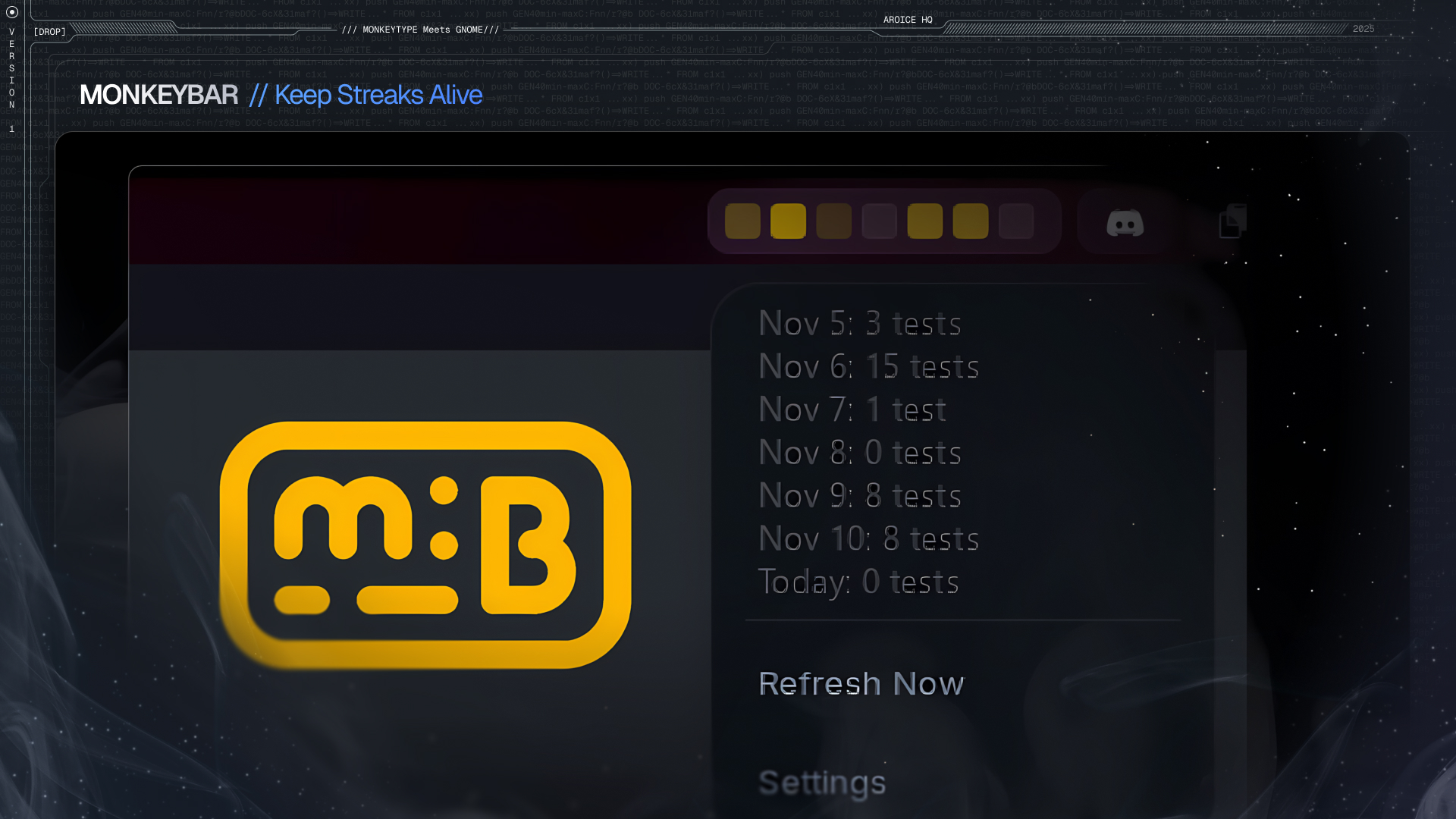
MonkeyBar transforms your Monkeytype typing activity into a beautiful visual calendar directly in your GNOME Shell top bar. Stay motivated, track your consistency, and celebrate your typing journey—all at a glance!
Click to watch the full demo and tutorial
- 🎨 Beautiful Visualizations: 12 stunning color themes to match your desktop aesthetic
- 📊 Activity Overview: See 1-7 days of your typing activity in colorful boxes
- ⌨️ Keyboard Shortcuts: Quick access with customizable hotkeys
- 🔄 Auto-Sync: Configurable refresh intervals keep your data current
- 🎯 Zero Distraction: Minimal, elegant interface that doesn't get in your way
- 🔒 Privacy First: Your data stays local; only Monkeytype API calls are made
| Feature | Description |
|---|---|
| 📅 Customizable Activity Display | Show 1-7 days of your typing activity in colorful boxes |
| 🖱️ Interactive Popup | Left-click to see detailed daily test counts and dates |
| 🌐 Right-click Action | Right-click to open Monkeytype homepage or your profile |
| ⌨️ Keyboard Shortcuts | Quick access to refresh, open Monkeytype, and view profile |
| ⚡ Real-time Updates | Automatic data synchronization with Monkeytype |
| 🎨 12 Beautiful Themes | From classic Monkeytype yellow to Dracula and Panda 🐼 |
| 📍 Flexible Positioning | Place anywhere in your panel (left, center, or right) |
| 🌓 Dual Color Modes | Opacity-based or grade-based visualization |
| 📆 Week Customization | Start your week on any day (Monday, Sunday, etc.) |
| 💡 Current Day Highlight | Optional border around today's box |
Activity intensity shown through transparency | more tests = more opaque
Distinct color levels based on test count thresholds
- Visit the MonkeyBar extension page
- Click the toggle to install
- Configure your Monkeytype credentials
# Clone the repository
git clone https://github.com/AROICE-HQ/monkeybar.git

# Create extensions directory if it doesn't exist
mkdir -p ~/.local/share/gnome-shell/extensions/

# Copy extension files
cp -r monkeybar ~/.local/share/gnome-shell/extensions/monkeybar@aroice.in

# Compile schemas
glib-compile-schemas ~/.local/share/gnome-shell/extensions/monkeybar@aroice.in/schemas/

# Restart GNOME Shell
# For X11: Press Alt+F2, type 'r', press Enter
# For Wayland: Log out and log back in

# Enable the extension
gnome-extensions enable monkeybar@aroice.in- GNOME Shell: 46, 47, 48, or 49
- Internet Connection: Required for Monkeytype API access
- Monkeytype Account: Free account at monkeytype.com
- ⌨️ NEW: Customizable keyboard shortcuts for quick actions
- Refresh Now (Super+Shift+R)
- Open Monkeytype (Super+Shift+M)
- Open User Profile (Super+Shift+P)
- 🎯 Interactive shortcut configuration in settings
- ⚡ System-wide hotkey support
- 🎨 Display customization: 1-7 days to show
- 📅 Current week view option
- 🖱️ Configurable right-click action
- 🎨 Improved theme system
- 🎨 12 color themes
- 📊 Dual color modes (opacity/grade)
- 📍 Panel positioning
- 🔄 Auto-refresh functionality
- 📆 Week start day customization
- 💡 Current day highlighting
- Visit Monkeytype Settings
- Navigate to the ApeKeys section
- Generate a new ApeKey (don't forget to activate ape key)
- Copy your username and the generated ApeKey
- Right-click on the MonkeyBar widget in your top bar
- Select "Settings"
- Enter your credentials:
- Monkeytype Username: Your account username
- ApeKey: The key you just generated
Navigate through the settings page to personalize:
| Setting | Options | Default |
|---|---|---|
| Days to Show | 1-7 days | 7 days |
| Refresh Interval | 15 min - 24 hours | 6 hours |
| Panel Position | Left, Center, Right | Right |
| Color Theme | 12 themes available | Monkeytype |
| Color Mode | Opacity or Grade | Opacity |
| Week Start Day | Any day of the week | Monday |
| Highlight Today | On/Off | Off |
| Show Current Week | On/Off | Off |
| Right-click Action | Open Homepage or Profile | Homepage |
MonkeyBar includes customizable keyboard shortcuts for quick actions:
| Shortcut | Default | Action |
|---|---|---|
| Refresh Now | Super+Shift+R |
Instantly refresh typing activity data |
| Open Monkeytype | Super+Shift+M |
Open Monkeytype (homepage or profile) |
| Open User Profile | Super+Shift+P |
Open your Monkeytype profile directly |
Customization:
- All shortcuts are fully customizable in Settings → Keyboard Shortcuts
- Click any shortcut button and press your desired key combination
- Must include at least one modifier key (Ctrl, Alt, Super, Shift)
- Shortcuts work system-wide in GNOME Shell
- Can be disabled by clearing them in settings
- ✅ Local Storage: Your ApeKey is stored only on your computer
- ✅ Direct API: Communication only with Monkeytype's official API
- ✅ No Third Parties: Zero external servers or tracking
- ✅ Read-Only: Extension only reads your data, never modifies
- ✅ Public Fallback: Without ApeKey, shows public streak data only
MonkeyBar includes 12 beautiful themes to match your desktop aesthetic:
- 🟡 Monkeytype - Classic yellow theme (default)
- 🟢 GitHub Green - GitHub green gradient style
- 🧛 Dracula - Purple and pink accents on dark background
- 🎃 Halloween - Spooky orange and black
- 🐼 Panda - Black and white with colorful highlights
- ☀️ Sunny - Bright yellow/gold gradient
- 🔵 Blue - Cool blue gradient
- 🩷 Pink - Pink/magenta gradient
- 🐚 Teal - Calming aqua colors
- 🌅 Solarized Light - Popular light developer theme
- 🌙 Solarized Dark - Popular dark developer theme
- ⬜ @left_pad - Minimalist grayscale theme
# Clone the repository
git clone https://github.com/AROICE-HQ/monkeybar.git
cd monkeybar

# Compile schemas
glib-compile-schemas schemas/

# Install locally
mkdir -p ~/.local/share/gnome-shell/extensions/monkeybar@aroice.in
cp -r * ~/.local/share/gnome-shell/extensions/monkeybar@aroice.in/

# Enable the extension
gnome-extensions enable monkeybar@aroice.inmonkeybar@aroice.in/
├── extension.js # Main extension logic
├── prefs.js # Settings/preferences UI
├── metadata.json # Extension metadata
├── helpers/
│ ├── monkeytypeService.js # Monkeytype API integration
│ ├── settings.js # Settings management
│ └── about.js # About page
├── schemas/
│ └── org.gnome.shell.extensions.monkeybar.gschema.xml
└── icons/
└── PNG/ # Extension icons
# Watch GNOME Shell logs
journalctl -f -o cat /usr/bin/gnome-shell

# Or filter for MonkeyBar only
journalctl -f -o cat /usr/bin/gnome-shell | grep -i monkeybar

# Use GNOME Looking Glass (Alt+F2, type 'lg')
Main.extensionManager.lookup('monkeybar@aroice.in')MonkeyBar uses the official Monkeytype API:
Endpoints:
GET /users/{username}/profile- Public profile and streak dataGET /users/currentTestActivity- Authenticated daily test activity
Contributions are welcome! Whether it's bug reports, feature requests, or code contributions, every bit helps.
- Fork the repository
- Create a feature branch:
git checkout -b feature/amazing-feature
- Make your changes
- Test thoroughly on your system
- Commit with clear messages:
git commit -m 'Add: amazing feature description' - Push to your fork:
git push origin feature/amazing-feature
- Open a Pull Request
- Follow existing code style and conventions
- Test on GNOME Shell 46, 47, and 48 if possible
- Update documentation for new features
- Keep commits atomic and well-described
- Respect the MIT license
- ✅ Settings page with credential management
- ✅ Automatic data fetching with intervals
- ✅ Customizable panel positioning
- ✅ Interactive popup with daily counts
- ✅ Week start day configuration
- ✅ Multiple color themes (12 themes)
- ✅ Dual coloring modes (opacity/grade)
- ✅ Current day highlighting
- ✅ Configurable days to show (1-7 days)
- ✅ Right-click to open Monkeytype (homepage or profile)
- ✅ Keyboard shortcuts (v7 - KeyMaster)
- 🔄 Customizable activity thresholds
- 🔄 Multiple account support
- 🔄 Monthly/yearly view options
- 🔄 Achievement notifications
- 🔄 Export activity data
...
Extension not showing typing activity?
Solutions:
- Verify your username is correct (case-sensitive)
- Ensure ApeKey has proper permissions
- Check internet connection
- Wait for next refresh or click "Refresh Now"
- Check logs:
journalctl -f | grep -i monkeybar
Widget not appearing in top bar?
Solutions:
- Confirm extension is enabled in Extensions app
- Restart GNOME Shell (Alt+F2, type
r, Enter on X11) - Check GNOME Shell version compatibility (46, 47, 48)
- Verify installation path is correct
Shows only streak data, not daily activity?
Solution:
- This happens when no ApeKey is provided
- Generate an ApeKey at Monkeytype Settings
- Add it in MonkeyBar settings
Colors not updating correctly?
Solutions:
- Try switching between opacity and grade modes
- Select a different theme and switch back
- Click "Refresh Now" in the dropdown menu
- 🐛 Bug Reports: Open an issue
- 💬 Questions: Check existing issues or start a discussion
- 📧 Contact: aryan@aroice.in
MonkeyBar is proudly developed and maintained by:
Aryan Techie (@Aryan-Techie) - Creator & Lead Developer
- Full extension concept and implementation
- Monkeytype API integration (public and authenticated endpoints)
- UI/UX design and all functionality
- Complete theme system (12 themes with opacity and grade modes)
- Settings and preferences architecture
- Documentation and project structure
- Interactive features (left-click popup, right-click actions)
- Weekly Commits by @funinkina - Original inspiration for activity visualization
- Monkeytype - The amazing typing practice platform
- GNOME Shell Extension Community - For excellent documentation and support
If you find MonkeyBar useful, consider supporting its development:

Star the repository ⭐ to help others discover MonkeyBar!
This project is licensed under the MIT License.
MIT License

Copyright (c) 2025 Aryan Techie (AROICE)

Permission is hereby granted, free of charge, to any person obtaining a copy
of this software and associated documentation files (the "Software"), to deal
in the Software without restriction, including without limitation the rights
to use, copy, modify, merge, publish, distribute, sublicense, and/or sell
copies of the Software, and to permit persons to whom the Software is
furnished to do so, subject to the following conditions:

The above copyright notice and this permission notice shall be included in all
copies or substantial portions of the Software.

THE SOFTWARE IS PROVIDED "AS IS", WITHOUT WARRANTY OF ANY KIND, EXPRESS OR
IMPLIED, INCLUDING BUT NOT LIMITED TO THE WARRANTIES OF MERCHANTABILITY,
FITNESS FOR A PARTICULAR PURPOSE AND NONINFRINGEMENT. IN NO EVENT SHALL THE
AUTHORS OR COPYRIGHT HOLDERS BE LIABLE FOR ANY CLAIM, DAMAGES OR OTHER
LIABILITY, WHETHER IN AN ACTION OF CONTRACT, TORT OR OTHERWISE, ARISING FROM,
OUT OF OR IN CONNECTION WITH THE SOFTWARE OR THE USE OR OTHER DEALINGS IN THE
SOFTWARE.
See the LICENSE file for complete details.
- 🏠 Repository: github.com/AROICE-HQ/monkeybar
- 🐛 Issues: Report a Bug
- 👨💻 Developer: Aryan Techie
- 🏢 Brand: AROICE
- ⌨️ Monkeytype: monkeytype.com
- 📚 API Docs: api.monkeytype.com/docs


This project is not affiliated with, endorsed by, or officially connected with Monkeytype or the GNOME Foundation. The use of the Monkeytype name and logo is for informational purposes only and does not imply any endorsement or affiliation. All trademarks and copyrights are the property of their respective owners.
MonkeyBar is an independent, community-driven project created by passionate developers for the typing community.
⭐ If you enjoy MonkeyBar, please star the repository!
Last Updated: November 22, 2025


