

This repository contains general information about the 2019 Charleston Digital Hub Hackathon, such as the schedule, map, and WiFi instructions. Each sustainable development goal will have an additional repository containing resources specific to it, such as the provided datasets, a description of the goal, and helpful website resources to aid in solution implementation.
Saturday, February 23rd
Charleston Digital Hub - 2387 Clements Ferry Road, Charleston, SC 29492
| Time | Details |
|---|---|
| 8:00 AM – 9:00 AM | Registration / breakfast |
| 9:00 AM - 9:15 AM | Introductions |
| 9:15 AM | Development begins |
| 12:00 PM | Lunch begins |
| 4:00 PM | Warning to make sure teams are watching the time |
| 4:40 PM | Warning to make sure teams have all code checked in |
| 5:00 PM | Development ends and dinner begins |
| 5:15 PM | Project judging begins |
| ~6:45 PM | Project judging ends (tentative) |
| ~7:00 PM | Announce the winners in each project track |
| ~7:15 PM | Final presentations begin |
| ~8:00 PM | Best in show winners announced |
SSID: hackathon2019
Password: BoozAllenHT2019
Your project will be judged across the following categories with the corresponding weight:
| Category | Weight |
|---|---|
| Implementation | 15 |
| Creativity | 10 |
| Data | 10 |
| Impact | 10 |
| X-Factor | 5 |
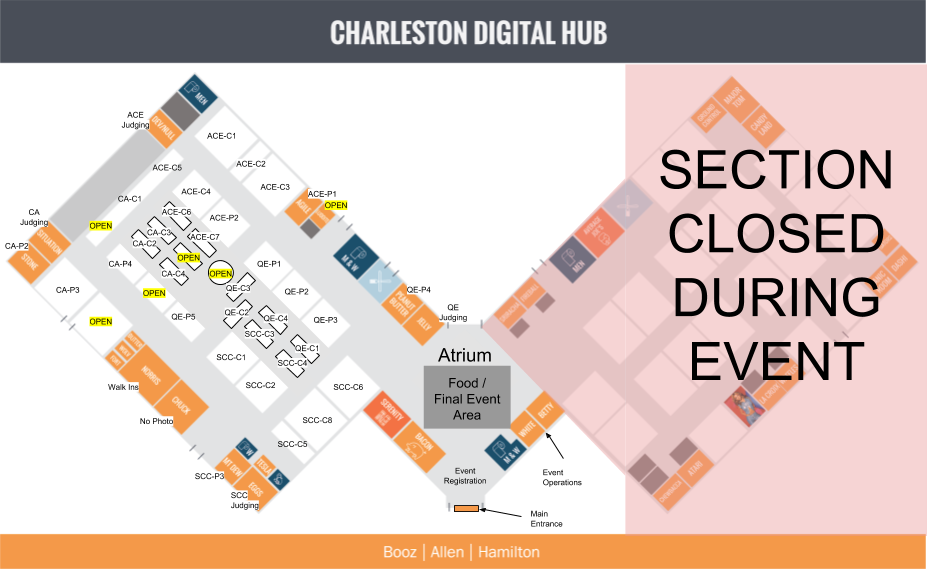
Four rooms will be assigned for judging (see map to find rooms):
| Room | Goal |
|---|---|
| Peanut Butter | Quality Education |
| Dev/Null | Affordable & Clean Energy |
| Situation | Climate Action |
| Eggs | Sustainable Cities & Communities |
Outside of each room will be a schedule of when each team is assigned for judging. Generally, the number postfixed to your team name represents where your slot is in the schedule.
Teams will have 3 minutes to demo working code, followed by a 2 minute Q&A session with the judges.
If your project wins the first round, your project will move onto the second round to determine best in show. This round will pit the winning project across the four categories against eachother in front of a panel of judges with a variety of experiences and backgrounds.
While the final round judges will have seen the rubric, we are asking them to consider each project using their backgrounds and insights to determine the one that best solves the issue at heart for the Sustainable Development Goal.
The following repositories contain information specific to each sustainable development goal. Please visit the one assigned to your team to download a copy of the challenge datasets, see more information about the goal, etc.
Download DBeaver Community (supported on Mac, Windows, multi SQL variants).
If you have already connected to your SQL instance and have your database(s) created already, you can restore a database via: right clicking the target database navigating to Tools > Restore database, and choosing the database backup file corresponding to the target database.
If you haven't connected to your SQL instance and have not created your database(s) already, follow the steps below.
NOTE: This assumes you have not configured your machine locally with your SQL of choice or any database backups
This procedure explains how to install and configure MySQL locally for database backups using Homebrew on macOS
Installing Homebrew via opening Terminal and entering :
$ /usr/bin/ruby -e "$(curl -fsSL https://raw.githubusercontent.com/Homebrew/install/master/install)"
At this time of writing, Homebrew has MySQL version 8.0.15 as default formulae in its main repository :
Enter the following command : $ brew info mysql
Expected output: mysql: stable 8.0.15 (bottled)
To install MySQL enter : $ brew install mysql
Start your local MySQL instance via: mysql.server start
Expected output:
Starting MySQL
SUCCESS!
Login as a root user to MySQL via: mysql -uroot
Expected output:
Welcome to the MySQL monitor.  Commands end with ; or \g.
Your MySQL connection id is 9
Server version: 8.0.15 Homebrew

Copyright (c) 2000, 2019, Oracle and/or its affiliates. All rights reserved.

Oracle is a registered trademark of Oracle Corporation and/or its
affiliates. Other names may be trademarks of their respective
owners.

Type 'help;' or '\h' for help. Type '\c' to clear the current input >statement.

mysql>
-
Within the mysql prompt, to restore a MySQL database, first create the target database in the backup file via:
create database <NAME-OF-DATABASE-IN-BACKUP-FILE>;For example, if the name of the database in the backup file was
international_energy_statistics, the mysql prompt would look like so:mysql> create database international_energy_statistics; -
Exit the prompt via
command+D, then execute the following to restore the database:mysql -uroot <NAME-OF-DATABASE-IN-BACKUP-FILE> <NAME-OF-BACKUP-FILE>.sqlFor example, if the name of the database in the backup file was
international_energy_statisticsand the name of the backup isinternational_energy_statistics_mysql.sql, the correct command would be:mysql -uroot international_energy_statistics < international_energy_statistics_mysql.sql
Ask your question in the #helpline channel on the Hackathon 2019 Slack.