I've created this repo for easy setup of a PCLP environment in Visual Studio Code
If you need help ask me or ChatGPT (same thing anyway :))
It includes things like:
- autosave (so you don't cry if you close your computer)
- formatter (so the checker doesn't cry that you didn't put the {} right)
- debugger configuration - btw you must learn how to use the debugger, because you can examine your variables while the code is running and determine what's wrong with your code, spening less time bug hunting (search on youtube or annoy @alin1popa for more debugging demos)
Check out the config files above ^^^ and ask or search things you don't understand. ChatGPT is your friend. Tweak them so you can feel confident in your evironment. Break things, explore, almost everything is reversible.
You can also just copy and paste the code from your browser into the corresponding files instead of using
git clone, if you prefer
If you haven't already, install git:
dyno@ragnarok:~$ sudo apt update
dyno@ragnarok:~$ sudo apt install git -ydyno@ragnarok:~$ git clone https://github.com/DynoW/pclp-vscode.git && cd ./pclp-vscodedyno@ragnarok:~/pclp-vscode$ git status
On branch main
Your branch is up to date with 'origin/main'.
nothing to commit, working tree cleanIf you see different output, you probably have to do a $ git pull
pclp-vscode
├── README.md <- you are reading this now
├── .clang-format <- the coding style that the PCLP checker uses (Linux Kernel)
├── .editorconfig <- extra config for vscode
└── .vscode
    ├── launch.json <- launch options for the debugger
    ├── settings.json <- workspace settings of vscode
    └── tasks.json <- autogenerated compile tasks for C compiler

2 directories, 6 files
Feel free to change the config files and extensions as you like
Move them to your pclp directory where you have preferably a labs and a homework directory
(you can skip the README.md)
pclp
├── README.md
├── .clang-format
├── .editorconfig
├── labs
│   ├── lab1
│   │   ├── main <-- the executable of my program
│   │   └── main.c <-- the source code of my program
│   ├── lab2
│   ├── lab3
│   ├── lab4
│   └── lab5
├── teme
│   ├── tema0
│   │   ├── check <-- the checker
│   │   ├── check_chocolate_rain-2025.10.20.zip <-- the homework archive
│   │   ├── check_utils
│   │   ├── cs
│   │   ├── fizzbuzz <-- the executable of my program
│   │   ├── fizzbuzz.c <-- the source code of my program
│   │   ├── install <-- install script for the checker
│   │   ├── Makefile <-- copy of Makefile.example3
│   │   ├── Makefile.example1
│   │   ├── Makefile.example2
│   │   ├── Makefile.example3
│   │   ├── PCLP 2025 - Tema 0 - 2025.10.20.pdf <-- tasks pdf
│   │   ├── README <-- the explanation of my program
│   │   ├── README-checker.md
│   │   └── tasks <-- the directory in which verification tests are located
│   └── tema1
└── .vscode
    ├── launch.json
    ├── settings.json
    └── tasks.json
C/C++ Extension Packby Microsoft (it installs C/C++, themes and CMake Tools)Makefile Toolsby MicrosoftError Lensby Alexandervscode-pdfby tomoki1207EditorConfig for VS Codeby EditorConfigBetter Commentsby Aaron Bond (optional)Excalidrawby pomdtr (optional - whiteboard for making schemes of algorithms, just create a file ending in .excalidraw)Material Icon Themeby Philipp Kief (optional) (To enable it:CTRL + SHIFT + P-> Material Icons: Activate Icon Theme)
You can read the description for each of them to learn more and understand how to use
This is already set up if you copied the settings.json
In VS Code, open a .c file and press CTRL+SHIFT+P and type: Format Document With... > Configure Default Formatter... > C/C++
This should set it as the default formatter. Now you can use the same steps and select 'Format Document' (or just press CTRL+S).
Just press the triangle with the bug in the top right.
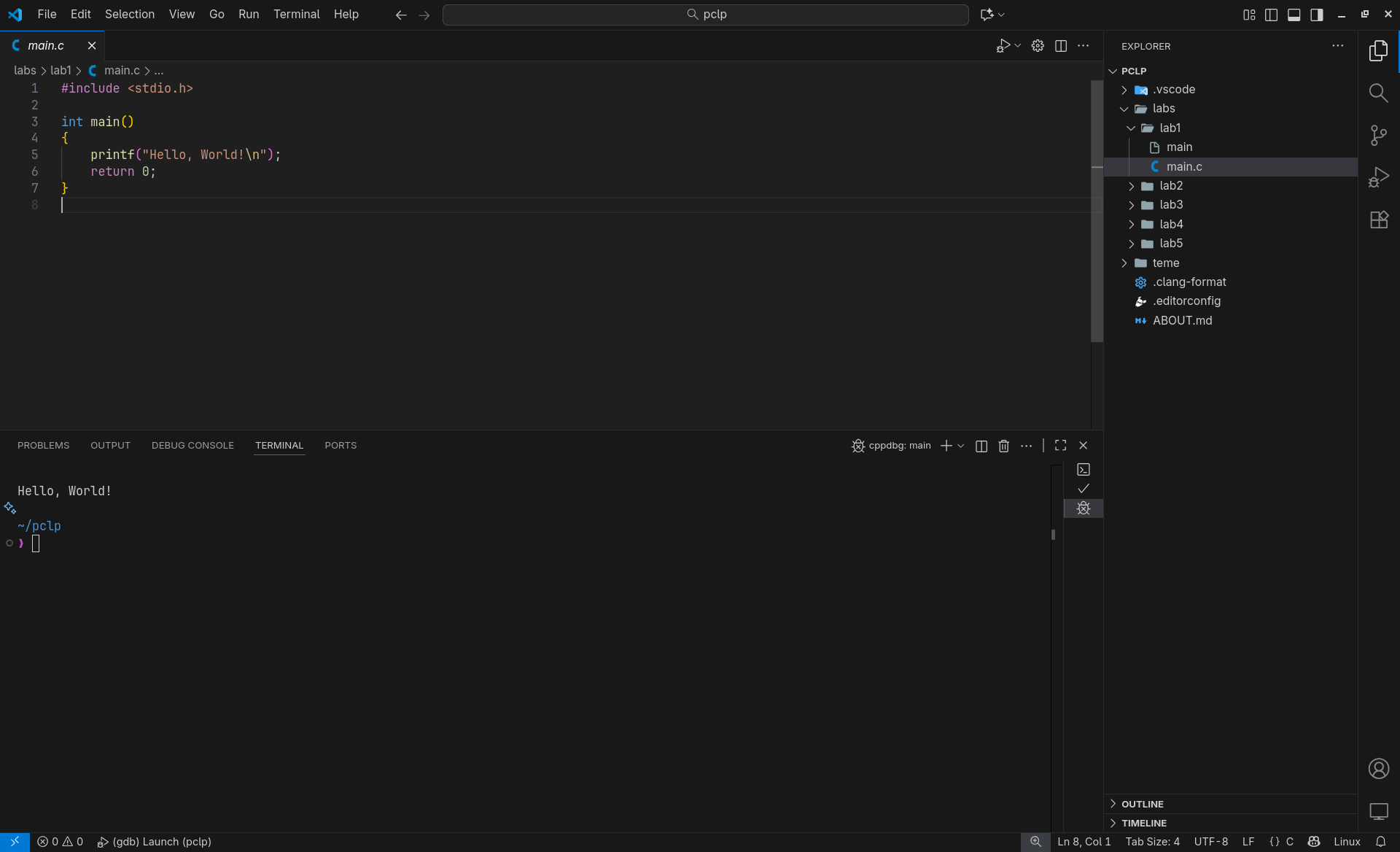
You will see the output of the program in the Terminal tab at the bottom.
You can use breakpoints by clicking on the lines. You should see a red dot there. That is where your program will pause and let you inspect variables in the panel on the right. (you can see in the example n = 10)
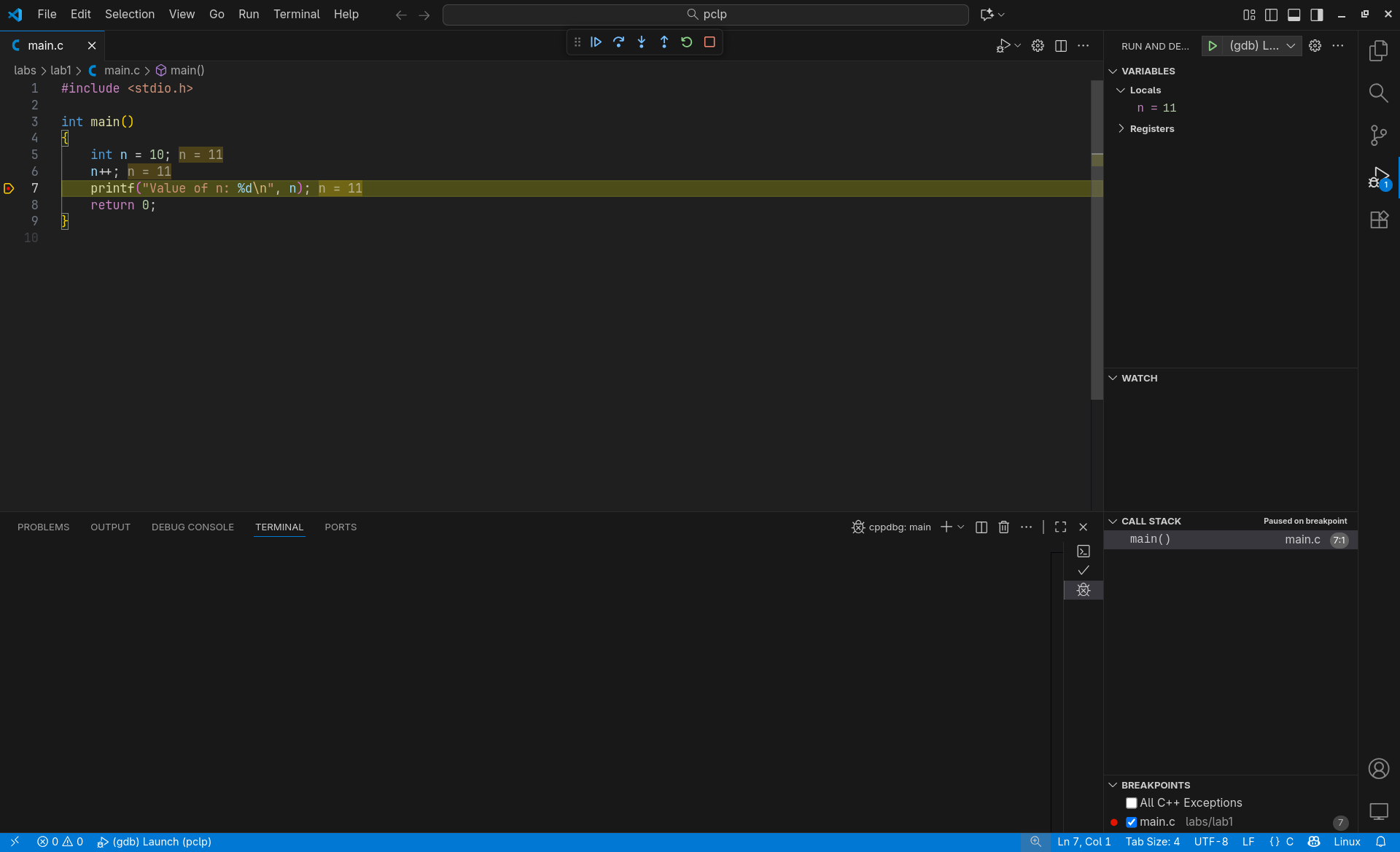
The reason you don't see any output is because the yellow line hasn't executed yet. You can continue execution of the program untill next breakpoint with the first option in the floating window that appeared. With the last option (red square stops the program)
P.S. I've disabled the yellow n=11 next to the code because it's sometimes confusing when it just shows the same value, even at declaration of n. (Behind the scenes the debuger just shows that memmory address of n, which is the same in all 3 places in the screenshot) For ease of undersanding just use the right pannel, it's more intuitive check the comment to enable it again
CTRL + /- comment in/out current lineCTRL + S- format file with the default formatterCTRL + [andCTRL + ]- to change indentation of line or multiple linesCTRL + F- find text in current fileCTRL + P- open a fileCTRL + SHIFT + P- command paletteCTRL + TAB- change between tabs
Less used but still useful sometimes:
CTRL + B- show/hide explorerCTRL + SHIFT + F- show/hide searchCTRL +`- show/hide terminal
All shortcuts here: vscode shortcuts
https://github.com/andre1ut/AjutorTemePCLP (some helpful tips for pclp homework checker)
https://ocw.cs.pub.ro/courses/programare/coding-style (the rules for the pclp coding style)
https://github.com/torvalds/linux/blob/master/.clang-format (here is the official linux kernel format config)
On Windows (convert LF -> CRLF on checkout, CRLF -> LF on commit)
git config --global core.autocrlf true
On Linux/macOS users (don't touch line endings, keep LF)
git config --global core.autocrlf input
dyno@ragnarok:~/pclp$ nano .gitattributes
# Set default behavior for text files
* text=auto
(CTRL+X and Y to save)
dyno@ragnarok:~/pclp$ git add --renormalize .
dyno@ragnarok:~/pclp$ git commit -m "Normalize line endings"