Direct Machine-physical Memory Allocation (DMU) restores precise memory allocation in a system with hardware memory compression.
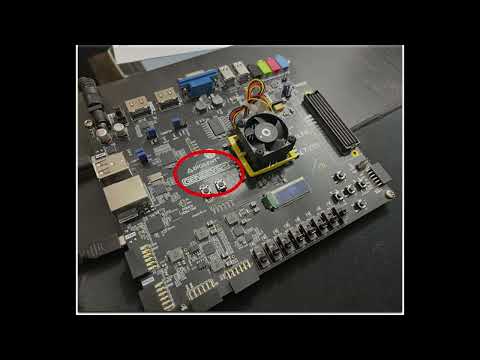
- FPGA_Bitstream.bit: RTL implementation of DMU. This file will be uploaded to the FPGA board.
- OS_Binary.bin: Binary of modified Linux kernel to support DMU.
- dmu_sdcard: Kernel module binaries and application binaries that are copied to the SD card, which goes inside the FPGA board.
- Genesys2 Kintex-7 FPGA board
- Vivado 2020.2
- Micro SD card (and a Micro SD card reader/writer)
- Linux machine for connecting to the FPGA board
- Insert a micro SD card in a computer with this repository.
- Search for the corresponding disk label of the inserted SD card using the following command:
$ sudo fdisk -l - Format the SD card using the following command (replace /dev/sdb with the device label you find in the previous command):
This command creates a new gpt partition table and two partitions: 1st partition: 32mb (ONIE boot), second partition: rest (Linux root)
$ sudo sgdisk --clear --new=1:2048:67583 --new=2 --typecode=1:3000 --typecode=2:8300 -g /dev/sdb - Copy the OS binary to the 1st partition inside the SD card using the following command (use the same disk label that you found before with fdisk -l but with a 1 in the end, e.g. /dev/sdb -> /dev/sdb1):
$ sudo dd if=OS_Binary.bin of=/dev/sdb1 status=progress oflag=sync bs=1M - Mount the 2nd partition of the SD card and copy the folder dmu_sdcard to the second partition. The following command assumes the label for the 2nd partition of your SD card is /dev/sdb2 and that the mount point for it is already created (i.e., /mnt/sdcard):
Copying the content (i.e., kernel module binaries and applications which will be run on the FPGA board) to the SD card:
$ mkdir /mnt/sdcard $ sudo mkfs.ext4 /dev/sdb2 $ sudo mount /dev/sdb2 /mnt/sdcard$ cp -r dmu_sdcard /mnt/sdcard $ sync - Create a swap file inside the SD card using the following commands (this command assumes that the SD card is mounted at /mnt/sdcard):
$ sudo fallocate -l 1G /mnt/sdcard/swap $ sudo chmod 600 /mnt/sdcard/swap $ sudo mkswap /mnt/sdcard/swap - Unmount the SD card from the computer using the following command:
$ sudo umount /mnt/sdcard - Remove the SD card from the computer and insert it inside the FPGA board.
- Open Vivado 2020.2's Hardware Manager.
- Locate the label of the FPGA device inside the "Hardware". Right-click on the device's name and then click "Program Device...".
- Locate the "FPGA_Bitstream.bit" and select it for "Bitstream file:".
- Click on "Program". This will upload the bitstream to the FPGA board.
- Wait for the OS to boot up on the FPGA.
Once the OS boots up, login the OS by entering "root" when prompted (i.e., when the screen says "buildroot login: ").
After logging in, execute the the following commands:
$ mkdir a
$ mount /dev/piton_sd2 a/
$ cd a/dmu_sdcard
$ sh cgroup_setup.sh
$ swapon ../swap
$ sh insert_dmu_module.sh
After executing these commands, if the terminal console says “Module loaded”, the environment has successfully been set up.
Following are the instructions to run the experiment from the demo video, presented as a link in the paper (https://www.youtube.com/watch?v=GyCOF7MZk-U). Please watch the video before proceeding with the experiment. Please execute the following commands (without the ‘#’ sign) in sequence one after the other with minimum delay unless stated otherwise (the delay between commands is mentioned in blue text):
- Under DMU, co-located workloads get the amount of machine-physical memory they specify in the presence of hardware memory compression ensuring precise memory allocation. Execute the following commands to kick off three identical instances of mcf under different CCBs:
$ cd spec2006_test/429.mcf_test/
$ ./MachinePhysMemMgr --total-allocation-obj 70 --run-with-CCB 1 ./mcf_1 inp.in > out.mcf1
$ ./MachinePhysMemMgr --total-allocation-obj 100 --run-with-CCB 2 ./mcf_2 inp.in > out.mcf2
$ ./MachinePhysMemMgr --total-allocation-obj 155 --run-with-CCB 3 ./mcf_3 inp.in > out.mcf3
YouTube minute-mark link for reference: https://youtu.be/GyCOF7MZk-U?t=57
Query which programs are running under which CCBs
$ ./MachinePhysMemMgr --print-state
YouTube minute-mark link for reference: https://youtu.be/GyCOF7MZk-U?t=77
- Under DMU, a workload only gets compressed when it can no longer fit inside its specified machine-physical memory as plaintext After 10 minutes, query how much physical memory is allocated to each program.
$ cat /proc/`pidof mcf_1`/status | grep -E 'State|VmRSS|VmSwap'
$ cat /proc/`pidof mcf_2`/status | grep -E 'State|VmRSS|VmSwap'
$ cat /proc/`pidof mcf_3`/status | grep -E 'State|VmRSS|VmSwap'
$ ./MachinePhysMemMgr --print-state
YouTube minute-mark link for reference: https://youtu.be/GyCOF7MZk-U?t=82
-
Under DMU, when a workload can no longer be further compressed, the system gracefully swaps out memory values only of that workload
Wait for about 20 minutes for DMU to raise an interrupt. DMU raises an interrupt to alert the OS that a program can no longer fit inside machine-physical memory despite compression.
After ~3 minutes of receiving the interrupt message, execute the following commands to see a non-zero value for VmSwap for the program (i.e., mcf_1 in this case) that can no longer fit inside DRAM; the VmSwap value will still be zero for other programs as their memory values are still in memory:
$ cat /proc/`pidof mcf_1`/status | grep -E 'State|VmRSS|VmSwap'
$ cat /proc/`pidof mcf_2`/status | grep -E 'State|VmRSS|VmSwap'
$ cat /proc/`pidof mcf_3`/status | grep -E 'State|VmRSS|VmSwap'
$ ./MachinePhysMemMgr --print-state
YouTube minute-mark link for reference: https://youtu.be/GyCOF7MZk-U?t=120
-
Under DMU, all workloads' combined resident set size (RSS) is much more (i.e., up to 4X more) than the amount of DRAM installed on the FPGA board.
After ~2 minutes, execute the following commands to run a simple array-access C program (i.e., “hog”) that requests >3GB of physical memory from the OS. With this program, the combined RSS of the system will become much more than the DRAM on the FPGA board (i.e., much more than 1GB).
$ ./MachinePhysMemMgr --CCB 3 --update-unused-allocation-obj 50
$ ./MachinePhysMemMgr --print-state
$ ./MachinePhysMemMgr --CCB 3 --update-total-allocation-obj 105
$ ./MachinePhysMemMgr --print-state
$ ./MachinePhysMemMgr --CCB 1 --update-total-allocation-obj 500
$ ./MachinePhysMemMgr --run-with-CCB 1 ./hog --size-in-MB 3072
$ ./MachinePhysMemMgr --print-state
YouTube minute-mark link for reference: https://youtu.be/GyCOF7MZk-U?t=185
Please wait for the “hog” program to finish initializing its memory values; this usually takes 10 minutes.
$ grep -E "MemTotal|MemFree|SwapTotal|SwapFree" /proc/meminfo
YouTube minute-mark link for reference: https://youtu.be/GyCOF7MZk-U?t=238