

mcctl (aka minecraft-server-control) is a bash script which can automatically run and update your minecraft server.
Warn: Windows and macOS are not supported, use Arch Linux to achieve best experience.
First set 2 environment variables: $version and $serverPath. This will tell mcctl your desired version and path to your server
[Environment Variables] mcctl --[Options]Examples:
version=1.19 serverPath=/mnt/main/Cache/Paper bash mcctl --update --autodetectNote: If you haven't installed mcctl to your system, just cd to mcctl and replace mcctl with ./mcctl
Install the mcctl-git from aur
Examples using yay:
yay -S mcctl-gitgit clone https://github.com/Kimiblock/mcctl.git && cd mcctl && ./mcctl --installmcctl --uninstallTip: Now you can let mcctl automatically detect servers and plugins to install, just type:
mcctl --update --autodetectmcctl --update --[options]| Options | Effects |
|---|---|
| mojang | Update Mojang server. |
| spigot | Update spigot. |
| paper | Update paper. |
| sac | Update SoaromaSAC |
| floodgate | Update floodgate. |
| geyser | Update geyser. |
| --systemupdate | Fully update your system. ( Run with sudo when -unattended activated! ) |
| --unsafe | Disable default protecting. |
| --newserver | Automatically create server folder. |
| --clean | Clean leftovers. |
| mtvehicles | Update mtvehicles (Unnecessary because you can update plugin by /mtv update) |
| multilogin | Update MultiLogin |
mcctl --create-snapshotYou can also specify where to store your snapshots by $snapshotPath
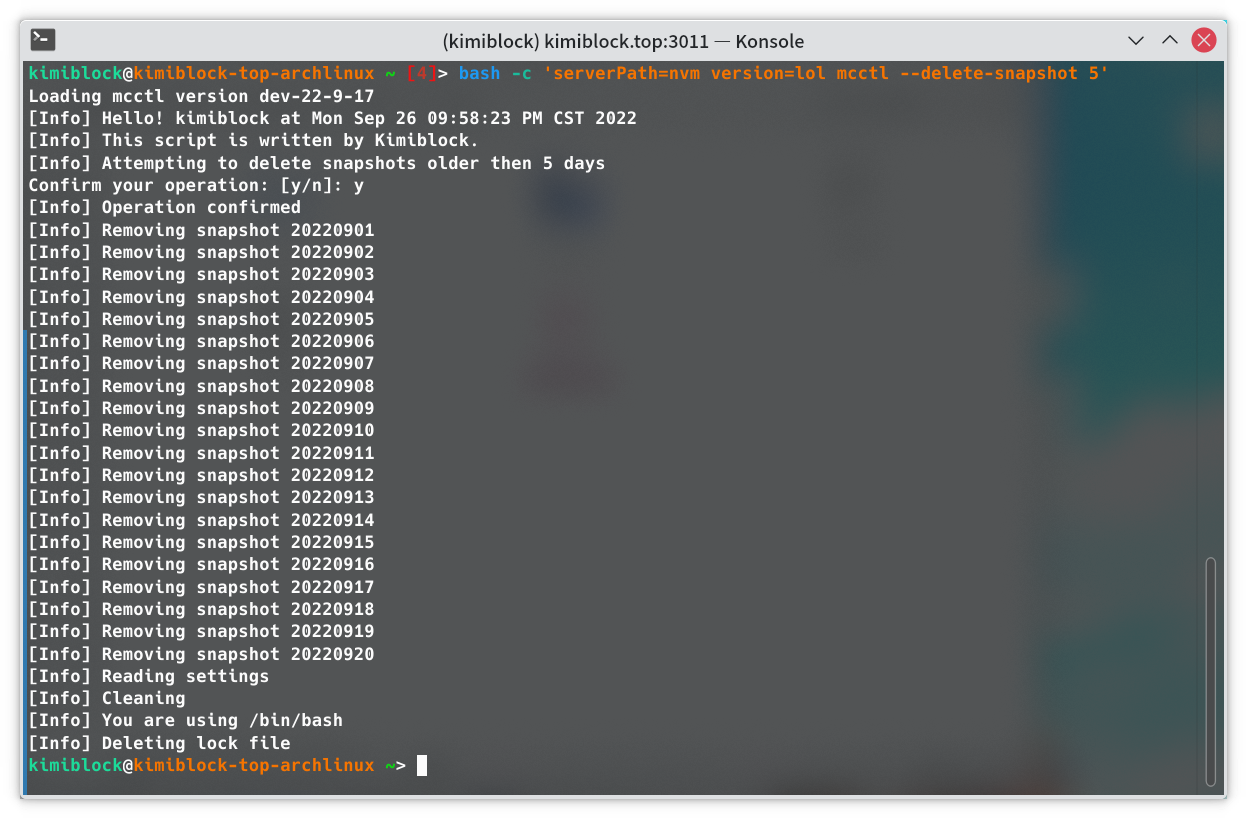
Remove snapshots older than $2 day(s)
mcctl --delete-snapshot $2Warning! Turn off your Minecraft server or you might break your system.
Restore snapshot $2 day(s) ago:
mcctl --restore-snapshot $2
[Environment Variables] mcctl --start [Server name] --d| Server name | Effects |
|---|---|
| paper | Start PaperMC |
| spigot | Start SpigotMC |
| mojang | Start Mojang server |
Note: Install screen if you add -d, you can go back to your server session by screen -r mc.
[Environment Variables] mcctl --save-conf --[Options]Next time you use mcctl, just type mcctl. Script will automatically remember what you entered last time.
Tip: Install and setup ssmtp first.
mcctl --mail-report $2 #replace $2 with your mail address | Options | Effects |
|---|---|
| --instreq | Install requirements |
Control what will mcctl output. Enter options to control
| Options | Effects |
|---|---|
| --verbose | Output anything |
| --quiet | Hide outputs |
mcctl --cleanmcctl --unattendedEdit /etc/environment, add those lines:
version=Target Minecraft version
serverPath=Path to server directory
Then reboot or re-login
cd to your server
mcctl --currentdirectory --latest [options]This will set server path to your current folder and default to the latest version.
Just type mcctl install again, script will download the latest version of itself and perform updates.
Get the cronie package and enable cronie.service.
Type crontab -e and enter those line:
0 0 * * * mcctl --[Options]
Check if you have environment variables set, either in /etc/environment or before mcctl
Warning: you have to manually restart the server, otherwise some plugins WON'T use new features./reload or /reload confirm
Just add a --newserver option, script will automatically handle it.
Save configurations to~/.config.
-
Spigot's own build tools may occationally crash,
mcctl --cleanmight fix it. -
Do not use
zshor any other shell, change your default shell to bashchsh -s /bin/bashor run mcctl under bash (If your default shell isn't bash, some non-critical problem will occur) -
Can't download sac due to spigotmc.org's unique protection
Make sure you have control of the directory
[Environment Variables] mcctl --unsafe --[Options]Set 2 environment variables serverPath version, either before mcctl command or in /etc/environment.
Check if you have full control of your server.
mcctl --currentdirectory --latestCheck if you have specified correct directory.
Install package screen or
mcctl --instreq #Currently unstablemcctl cannot detect which package manager you're using, remove --systemupdate and wait for support.
install package systemd, its not supported by --instreq by default because mess up your init will cause unexpected issues.
Can't reach github.com, check your network and proxy settings.
Run the script as root or remove --unattended
mcctl generates a lock file ~/.mcctl.lock to prevent multiple mcctl run at the same time.
Several mcctl process may cause problems which might break your server. If you sure that no mcctl running (Check with htop btw), just remove ~/.mcctl.lock
Your server throws a exit code, check your screen name by screen -ls then screen -r $screenName
This is an undefined exit code, you can check ~/mcctl_debug.log