GameEngine Overview
This is documentation port of Radoslaw's original Document
On top of the low level SFLM code a basic GameEngine API and Game implementation has been provided. Participants are expected to modify a whole source base, engine included, to fit the needs that their game will create. Current version is kept basic purposefully and created in the same “hackathon” style as the challenge itself – Made in less than 30 labor hours, solving the problems that needed to be solved for our game implementation, while still keeping a proper robust structure that most of the games would need.
At the core of our API concept lies an ENTITY. Entity is an object that exists in our game, has a position, size and a bunch of other common functionalities. Think of it that way – if it should be dynamically created/removed, it exists/moves in the gameWorld, it can be seen/affected by the user – Most probably it should be an Entity. The opposing side would be Managers/Helpers – structures that most often exit in game as Singletons and are responsible for the “behind the scenes” work that our game needs to work (for instance – TextureManager, InputManager, AnimationManager).
Entities have the concept of parent and children which allows you to "attach" an entity to another entity. An entity can be set as a child of another entity by using the functions Entity::SetParent or Entity::AddChild to set the parent for an entity or add an entity as a child respectively. Setting an entity as a child means that it will now inherit the position, rotation, and size of the parent and will essentially be "attached", if the parent moves, the child will follow. You can modify the offset from the parent using the Entity::SetLocalPosOffset and Entity::SetLocalRotOffset functions to change the point and rotation the child is offset from the parent. For an example of entity parenting, GameBoard::GameBoard() in the FlappBird project has code to create a m_text entity which attaches an entity with text to the player.
Entity Tagging is a system to assign a tag to entities for categorization. For example, in the FlappyBird example, all obstacle entities are assigned the "Obstacle" tag in ObstacleEntity::ObstacleEntity using the Entity::SetEntityTag function. Setting a tag on an entity allows you to query for entities that match a tag using GameEngineMain::GetEntitiesByTag as shown in GameBoard::UpdateObstacles in the FlappyBird example. Only one tag can be active for an entity at any given time and tags can be removed using `Entity::ClearEntityTag``.
In our engine we opted for Component based design, since:
- Most of the modern GameEngines implement that structure
- And for good reason – since it makes the code quite robust and easy to work with, where functionalities are divided into manageable chunks and one can easily control what an Entity is supposed to be doing in our world.
AnimationComponent – fully responsible for animating a sprite SpriteRenderComponent – Bit of code that makes sure that the sprite is actually shown on the screen CollidableComponent – Marker component that implements basic collision detection functionality
That way, if we want our player to be animating, moving with inputs, rendering on screen as a sprite, and colliding with stuff, we can do:
m_player = new Entity();
m_player->AddComponent<GameEngine::CollidablePhysicsComponent>();
m_player->AddComponent<GameEngine::SpriteRenderComponent>();
m_player->AddComponent<GameEngine::AnimationComponent>();
m_player->AddComponent<GameEngine::PlayerMovementComponent>();
And if we want to create an animated Obstacle, we use the same snippet, but drop the PlayerMovementComponent.
At its core – Component should be responsible for singular functionality, and should be made robust enough to fit many different types of entities to perform the same function. More about components we implemented for you - later. ``
The void GameEngineMain::OnInitialised() function is called after the SFLM window is initialised and our game should be ready to go. All local initis, new manager, should probably be handled there. The void GameEngineMain::Update() is called EVERY frame and goes through the list of added entities
to put them into Update que and Render que. This also makes sure that Entity::Update and Component::Update functions are called.
An entity when added to the engine, will always be one frame delayed, before being ready. This is done to allow all static values and new components to be created inside the Entity constructor, and then used safely in a provided: void Entity::OnAddToWorld() / void Component::OnAddToWorld().
Symmetrically, when the Entity is removed from game, before being fully deleted and cleared the proper void Entity::OnRemoveFromWorld will be called, to allow cleanup dependent on the values that might still exist within components.
Entity::Entity() -> GameEngine::AddEntity -> 1 frame delay -> Entity::OnAddToWorld
GameEngine::RemoveEntity -> Entity::OnRemoveFromWorld -> 1 frame delay -> Entity::~Entity()
GameEngine API provides a few game systems and toys, that most of the implementations would probably find use of. They are implemented in a very basic way, and you are welcome to build on top of them, to fill your application needs.
Implemented through RenderComponent – basic rendering allows us to use sflm::draw methods to show basic shapes in our game. Every entity registered in game engine that HAS the RenderComponent will end up on Render que, be properly sorted in Z 2d space (meaning things in a background will be drawn prior to things in the foreground) and then the Render method with proper rendering target (in our case – the Window that the user sees) will be called.
void RenderComponent::Render(sf::RenderTarget* target)
{
  //Debug draw of entity pos
  sf::RectangleShape shape(sf::Vector2f(5.f, 5.f));
  sf::Vector2f pos = GetEntity()->GetPos();
  pos -= shape.getSize() / 2.f;
  shape.setFillColor(m_fillColor);
  shape.setPosition(pos);
  target->draw(shape);
}
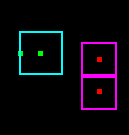
For us to be able to draw a sprite on screen, we have to be able to load and parse a *.png file as an sflm::texture. This is done in TextureManager class implemented with Singleton pattern.
To add a new texture to load, you can simply edit static texture enums in that file, and provide the filename to an image that should be the texture:
namespace eTexture
{
  enum type
  {
    None = -1,
    Player = 0,
    Tileset,
    BG,
    Particles,
    Count,
  };
}

inline const char* GetPath(eTexture::type texture)
{
  switch (texture)
  {
  case eTexture::Player: return "player.png";
  case eTexture::Tileset: return "tileset.png";
  case eTexture::BG: return "bg.png";
  case eTexture::Particles: return "particles.png";
  default: return "UnknownTexType";
  }
}
Once that part is done, we should be able to access that texture anywhere in the code with:
sf::Texture* texture = TextureManager::GetInstance()->GetTexture(eTexture::Player);
Textures usually hold a whole set of pictures to be used in the game, as dividing images into many files can be resource heavy. That is why, we have defined a texture TILE size, which you can modify here:
static sf::Vector2f GetTextureTileSize(GameEngine::eTexture::type texture)
{
  switch (texture)
  {
    case GameEngine::eTexture::Player: return sf::Vector2f(32.f, 32.f);
    case GameEngine::eTexture::Tileset: return sf::Vector2f(32.f, 32.f);
    case GameEngine::eTexture::BG: return sf::Vector2f(500.f, 500.f);
    case GameEngine::eTexture::Particles: return sf::Vector2f(31.f, 32.f);
    default: return sf::Vector2f(-1.f, -1.f);
  }
}
Tile defines a single “sprite image” that renders on the screen
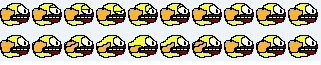
Player.Png – Full texture

Single tile from that texture.
The SpriteRenderComponent (extending RenderComponent) is responsible for figuring out which part of texture we want to render in our game.
void SpriteRenderComponent::UpdateSpriteParams()
{
  if (m_texture == eTexture::None)
    return;

  sf::Texture* texture = TextureManager::GetInstance()->GetTexture(m_texture);
  m_sprite.setTexture(*texture);

  //Set origin to centre
  sf::Vector2f textureSize = sf::Vector2f(texture->getSize());
  if (TextureHelper::GetTextureTileSize(m_texture).x > 0.f)
  {
    textureSize = TextureHelper::GetTextureTileSize(m_texture);
  }

  sf::IntRect textureRect((int)textureSize.x * m_tileIndex.x, (int)textureSize.y * m_tileIndex.y, (int)textureSize.x, (int)textureSize.y);
  m_sprite.setTextureRect(textureRect);
  m_sprite.setOrigin(sf::Vector2f(textureSize.x / 2.f, textureSize.y / 2.f));

  //If we have specified size, rescale to fit:
  if (GetEntity()->GetSize().x > 0.f && GetEntity()->GetSize().y > 0.f)
  {
    float scaleX = GetEntity()->GetSize().x / textureSize.x;
    float scaleY = GetEntity()->GetSize().y / textureSize.y;
    m_sprite.setScale(sf::Vector2f(scaleX, scaleY));
  }
}
And we control, which tile, by setting the m_tileIndex to what we want to show:
entity->GetComponent< SpriteRenderComponent >().SetTileIndex(0,0)
entity->GetComponent< SpriteRenderComponent >().SetTileIndex(3,0)

As you can probably see from previous example, the SetTileIndex function of SpireRenderComponent
can and is used for animation handling. If we switch the tiles after certain amount of time, we render
the next frame of animation, making our bird move. Animation parameters and clips are defined in AnimationManager
void AnimationManager::InitStaticGameAnimations()
{
  m_animDefinitions.push_back(SAnimationDefinition(EAnimationId::BirdIdle,eTexture::Player,sf::Vector2i(0, 0),10,3));
  m_animDefinitions.push_back(SAnimationDefinition(EAnimationId::BirdFly,eTexture::Player,sf::Vector2i(0, 1),10,15));
  m_animDefinitions.push_back(SAnimationDefinition(EAnimationId::Smoke,eTexture::Particles,sf::Vector2i(0, 0),10,15));
}
Where SAnimationDefinition is a structure filled with: AnimationId to be used later in the code, Texture that the animation uses, Index of first tile of the animation, Length of animation in frames, Frames per second. This animation definition is later used in AnimationComponent, that modifies the tile index of SpriteRenderComponent according to animation logic, making out characters animate on the screen:
We implemented a very basic AABB (Axis Aligned Bounding Box) collision system for you to build on. The AABB box is always aligned towards x/y axises on 2d space, which is less than ideal for complicated physics, but works well in simple examples and is very easy to implement.
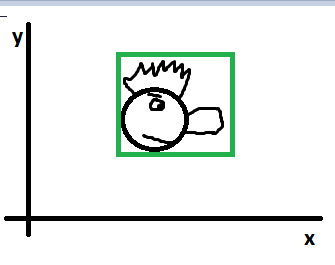
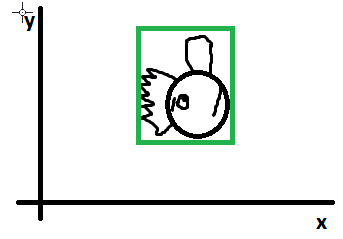
The box and the Entity ability to collide is implemented in CollidableComponent. Every entity with that Component is gathered in CollisionManager and used for further collision handling. CollidableComponent on it’s own does not really do anything – just defines that this is an object that we can collide WITH. In order to have our character actually stop and react to collision properly, a separate CollidablePhysicsComponent is used, and a simple code modifies the position of an Entity according to collision data:
void CollidablePhysicsComponent::Update()
{
  //For the time being just a simple intersection check that moves the entity out of all potential intersect boxes
  std::vector<CollidableComponent*>& collidables = CollisionManager::GetInstance()->GetCollidables();
  for (int a = 0; a < collidables.size(); ++a)
  {
    CollidableComponent* colComponent = collidables[a];
    if (colComponent == this)
      continue;
    AABBRect intersection;
    AABBRect myBox = GetWorldAABB();
    AABBRect colideBox = colComponent->GetWorldAABB();
    if (myBox.intersects(colideBox, intersection))
    {
      sf::Vector2f pos = GetEntity()->GetPos();
      if (intersection.width < intersection.height)
      {
        if (myBox.left < colideBox.left)
          pos.x -= intersection.width;
        else
          pos.x += intersection.width;
      }
      else
      {
        if (myBox.top < colideBox.top)
          pos.y -= intersection.height;
        else
          pos.y += intersection.height;
      }

      GetEntity()->SetPos(pos);
    }
  }
}
Huge word, for something so simple, but our basic implementation of particle emitters is as simple as creating a component that allows us to dynamically spawn new entities in fixed time increments, that also can automatically delete themselves after their specified “lifetime”.
void ParticleEmitterComponent::Update()
{
  float dt = GameEngine::GameEngineMain::GetInstance()->GetTimeDelta();
  m_toEmitTimer -= dt;
  if (m_toEmitTimer <= 0.f)
  {
    EmitParticle();
    m_toEmitTimer = RandomFloatRange(m_minTimeToEmit, m_maxTimeToEmit);
  }
}

void ParticleComponent::Update()
{
  float dt = GameEngine::GameEngineMain::GetInstance()->GetTimeDelta();
  m_lifeTimer -= dt;
  if (m_lifeTimer <= 0.f)
  {
    GameEngine::GameEngineMain::GetInstance()->RemoveEntity(GetEntity());
  }
}
Expanding this functionality with emission velocity (to randomize the particle directions and have particles move on screen), further emit randomization would definitely improve detail aspect of your games.
We implemented a TextRenderingComponent which when added to an entity, allows you to show text on the screen. You can find the TextRenderingComponent with other helpful engine components in GameEngine/EntitySystem/Components.
void TextRenderComponent::SetString(std::string displayString) Sets the text that will be displayed
void TextRenderComponent::SetFont(std::string fontFile) In order to display a text, we need to provide a valid font. The code will search for fonts in the file system under Resources/fonts/. Fonts will need to be provided in ttf form and when loading a font, the extension must also be passed into the TextRenderComponent::SetFont function (eg. m_textRenderComponent->SetFont("arial.ttf"))
TextRenderComponent::SetCharacterSizePixels(int characterSize) Sets the size of the text in pixels not points.
TextRenderComponent::SetStyle(sf::Text::Style style, bool value) and void TextRenderComponent::SetStyle(int styleBitField) sets style features such as bold and italics. You can either set each style directly using the boolean definition or set the whole field using a bit field.
TextRenderComponent::SetZ(int z) Remember that as a rendering component, we need to set the proper Z space level to get it to render properly. If your text is flickering or not showing up, it's possible that the Z level wasn't set up properly.
ButtonComponent implements clickable button behaviour and can be found in GameEngine/EntitySystem/Components. ButtonManager handles the mouse input and registration of buttons and can be found in GameEngine/Util.
ButtonComponent::SetBoundingBox(sf::Vector2f size) takes in a Vector2f and defines the dimensions of the button. The provided implementation supports AABB (Axis Aligned Bounding Box ie. rectangle) buttons. Creating buttons with different shapes, for example circular buttons or sprite based buttons is up to you.
void ButtonComponent::OnButtonClicked() is a virtual function that is called whenever a button is clicked. Your specific functionality for what a button does when clicked will go in here.