This is a personal project to setup a new machine. Right now most of these scripts and instructions are for windows machines using WSL 2 but for obvious reasons most of it should work just fine in a Linux or MacOS machine with a few exceptions (how zsh is installed and some dotnet core config mostly).
If not using ubuntu, install zsh see this link
For Powerline Terminal Fonts: https://github.com/romkatv/powerlevel10k#meslo-nerd-font-patched-for-powerlevel10k
For editors: Fira Code
- Install WSL2 https://docs.microsoft.com/en-us/windows/wsl/install-win10#manual-installation-steps 1-a) If you already have a windows setup, you can skip to the WSL section and ignore the rest.
- Install VS Code Direct Download Link
- Install WSL - Remote extension when prompted so you can do code . in WSL shell and edit files in there
- Run powershell as admin, Install chocolatey and basics (copy and paste PS script below, make sure to edit the install line if you already have some things (like Chrome\7zip))
Set-ExecutionPolicy Bypass -Scope Process -Force; [System.Net.ServicePointManager]::SecurityProtocol = [System.Net.ServicePointManager]::SecurityProtocol -bor 3072; iex ((New-Object System.Net.WebClient).DownloadString('https://chocolatey.org/install.ps1'))

choco install dotnet-sdk dotnet-7.0-sdk microsoft-windows-terminal python2 7zip nvm docker-desktop googlechrome git.install --params "/NoAutoCrlf"- Install Cmder if you want more linux-y commands available in windows terminal and remember to add a CMDER_ROOT environment variable to where the cmder file is or the windows terminal config won't work.
- Open Windows Terminal and go into settings, override with terminal/terminal.json as desired (restart after)
note that the starting directories and GUIDs are likely to be different - Create new SSH Key and add it to Github. You may want to\have to do this on WSL terminal also.
ssh-keygen -t ed25519 -C "comment"
cat ~/.ssh/id_ed25519.pub | clip
From WSL terminal clone this repo and CD into it and run the following commands.
sudo apt install zsh
sh -c "$(curl -fsSL https://raw.github.com/ohmyzsh/ohmyzsh/master/tools/install.sh)"

# IMPORTANT! Open the terminal/.zshrc file and change your user root directory (replace {username} with your actual username)
# answer Y to switching to ZSH so that ZSH is running before running the following scripts
. ./setup-zsh.sh
. ./setup-env.sh
If docker doesn't work inside the WSL container then check: https://docs.docker.com/docker-for-windows/wsl/ (basically have to toggle the engine on for your distro)
Profit.
The WSL setup scripts do basically the same thing the windows chocolately/checklist section does. It will install ZSH with the most common plugins:
- Autosuggest
- syntax highlighting
- powerlevel10k (for prompt)
- nvm for managing node
The env script setups dotnet core 3.1 and 5.0 along with pre-reqs and installs the latest LTS version of node and Yarn.It will then optionally walk you through configuring GIT and generating a new SSH key.
Pre-configured files for oh-my-zsh and powerlevel10k are then dropped in.
Check out powerlevel10k and oh my zsh for more info on how to customize things further. To reconfigure prompt in particular you can do p10k configure from the terminal.
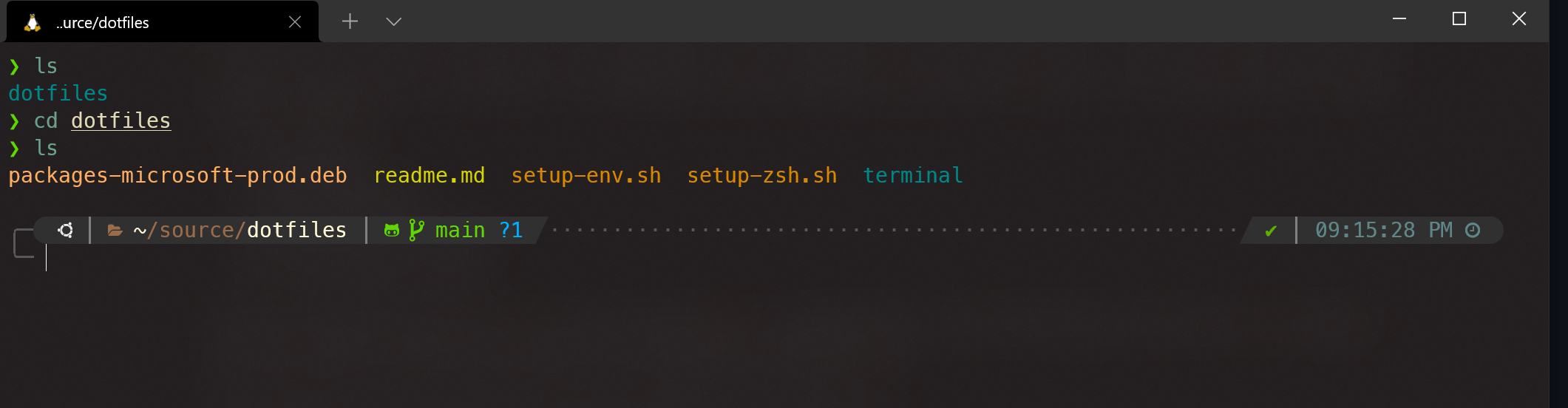
Windows Terminal should look something like this at the end:
Web dev is just easier to do from terminal nowadays and a good terminal makes things way easier. Windows Terminal supports multiple panels and tabs (For instance when you need to run webpack server and an API and still have a terminal open for random NPM/testing etc.) Try out panels with alt + shift + d and you will be hooked. alt + shift + backspace while focused on a panel to remove it. See the windows terminal docs for more info.
zsh/oh-my-zsh provide a rich prompt and autocomplete to make things easier. Also I got used to working with the terminal on MacOS so linux commands are easier for me to work with (and frankly most tutorials and guides will assume you're on a *nix flavor)
Even if you don't use the linux container you can use the terminal on windows installs (windows drives are available via /mnt/c/ etc paths)