
This project is about building a functional IRC (Internet Relay Chat) server from scratch in C++. The goal is to create a multi-client, event-driven network application that handles IRC protocol commands and manages user connections, channels, and message routing.
This project is a collaboration between:
- Alex: Server core & connection management, message handling, logging mechanism, and this ReadMe.
- Pavlos: Channel logic.
- Natalie: File transfer and server bot.
- What is IRC?
- How to Build the Server
- How to Connect to the Server
- Server Features
- Client–Server Communication
- Project Architecture
- Operational Workflow
- Core Server Functions
- File Transfer
- Bot
IRC, or Internet Relay Chat, is an open protocol for real-time text-based communication. It was created in 1988 by Jarkko Oikarinen in Finland, with the protocol officially documented in RFC 1459 in 1993 for the first time[1]. This project's server implementation is based on this foundational RFC.
Think of IRC as the standard for instant messaging and group chat that existed before web browsers became the primary application for accessing the internet.
- How it works: IRC operates on a client-server model. Users run a client program that connects to an IRC server. These servers are interconnected in a network to form an entire IRC network.
- Channels and Users: Communication happens in channels (group chats) or through private, one-on-one messages. A user is identified by a unique nickname on a given network.
- Key Features: IRC is known for its simplicity and efficiency. It's a lightweight protocol, making it ideal for large-scale communities and for sharing information quickly, without the overhead of modern web-based applications. It's still used by open-source projects, developers, and niche communities. A popular GUI client is HexChat, while WeeChat is a terminal client
- Server: A program that manages connections and routes messages between users.
- Client: A program (like mIRC, HexChat, or WeeChat) that a user runs to connect to a server.
- Channel: A named group chat room, denoted by a prefix like
#or&. For example,#42chat. - Nickname: A unique name a user chooses to identify themselves on a network.
- Hostmask: The full identity of a user, typically
nickname!username@hostname, used for security and access control.
1. Prerequisites
To build and run the server, ensure you have the following tools installed on your system:
- Git: To clone the source code.
- A C++ Compiler (e.g.,
g++): To compile the code. - Make: A build automation tool that reads the
Makefile.
2. Clone the Repository
Clone the repository and navigate into the project directory:
git clone https://github.com/alx-sch/IRC_server ircserv && cd ircserv
3. Build the Server Program
Use the make command to compile the server executable.
make
This command reads the project's Makefile and handles the entire compilation process. The build system is designed to be cross-platform and automatically adapts for macOS and Linux, which use POSIX-compliant sockets. Windows is not supported as its Winsock API is incompatible with this approach.
- OS-Specific Build: The server's non-blocking socket functionality is handled differently on Linux and macOS. The
Makefiledetects the OS and passes the correct compiler flags to handle these variations. - Linux: The code uses the
SOCK_NONBLOCKflag. - macOS: The code uses the
fcntl()function to set the non-blocking flag.
4. Run the Server
Provide a port number and a password for the server. The standard IRC port is 6667.
// Usage: ./ircserv <port> <password>
./ircserv 6667 pw123
If you want to allow connections without a password, use an empty string (") as the password argument.
5. make Commands
While make is sufficient for a basic build, here are a few other essential commands you might use:
make bot: Have a bot join the server! Learn more about the bot here.make clean: Removes all the compiled object files (.oand.dfiles) and the obj directory.make clean_log: Removes all generated log files from the project’s root directory.make fclean: Performs a full cleanup by removing object and log files + theircservexecutable.make re/make re_bot: A shortcut that runsfcleanand thenall/botto rebuild the project from scratch.make checkout_os: Prints the detected operating system to the console.
After you have built and run the server, you can connect to it using a variety of clients.
1. First, Find Your IP Address
To connect, you need to know your machine's IP address. Open a terminal and use this command to list your local IP addresses.
-
Linux
$ hostname -I 10.14.6.2 172.17.0.1 192.168.122.1 -
macOS
$ ifconfig | grep "inet "
inet 127.0.0.1 netmask 0xff000000
inet 192.168.2.152 netmask 0xffffff00 broadcast 192.168.2.255
For a local connection (from your own machine), you can always use the loopback address 127.0.0.1 or just localhost.
To make your server publicly accessible, you will need to configure your router with port forwarding, directing a public port (e.g., 6667) to your machine's local IP address. This Youtube video might give you some insights on how to do this.
2. Connect with Terminal Tools
To quickly test the server, you can use nc (Netcat) or telnet.
nc <your-IP-address> <port>
or
telnet <your-IP-address> <port>
Example: nc localhost 6667 (accessing from the same machine that hosts the server) or nc 10.14.6.2 6667 (accessing from the same local network, e.g. same host machine or some other computer in the same local network).
Once connected, you can communicate with the server using IRC commands (you would usually first register with the server by sending valid NICK, USER, and PASS commands).
3. Connect with a GUI Client
For a better user experience, a graphical client is recommended, e.g. Hexchat:
-
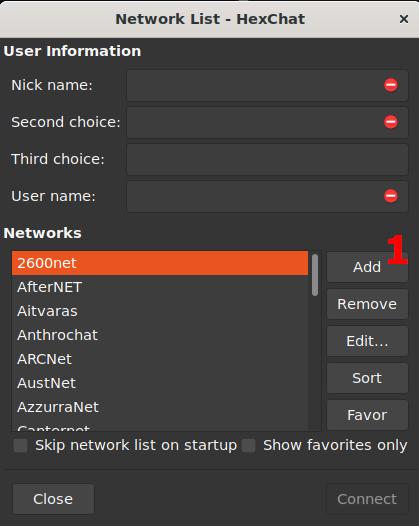
Open HexChat. In the Network List (prompted automatically), add a new network (1).
-
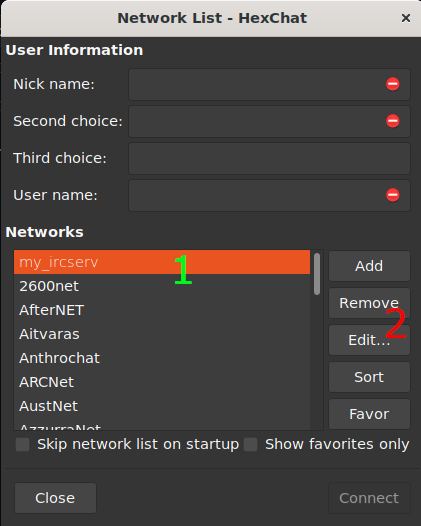
Name the new network (1) and edit its settings (2):
-
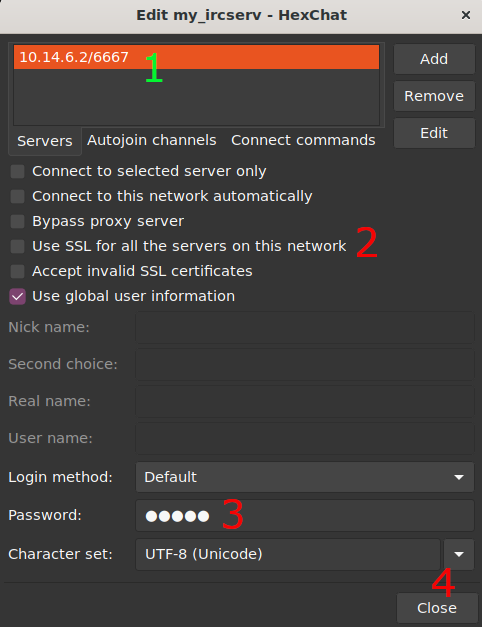
There is already a default server listed. Change its host IP address and port (1) to match your own. Disable SSL, since the server does not support it (otherwise it would fail to interpret the encrypted requests) (2). Enter the server password if required (3). Close the network settings (4):
-
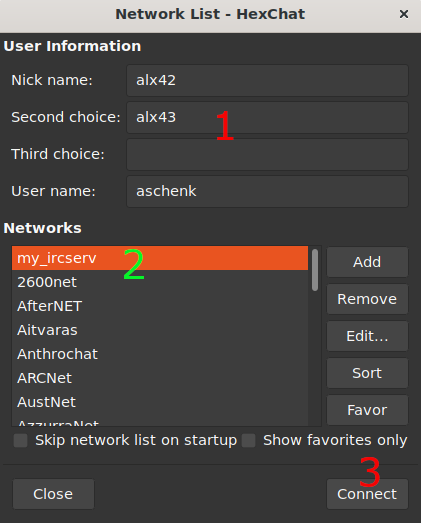
Enter the user info (nick, alt nick, username) (1), select the custom network (2), and connect (3).
-
HexChat automatically sends the registration commands (
NICK,USER,PASS) to the server. The client is now ready: join a channel with/join #channelnameor send a private message with/msg nickname message.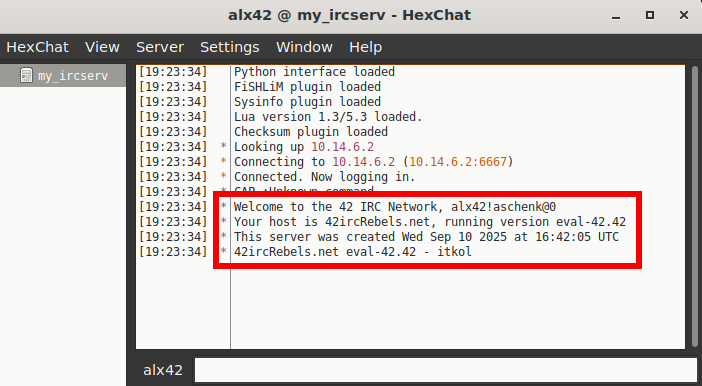
-
The server logs events to the console and to log files in the root directory (
<server_name>_<timestamp>.log). The client may send unsupported commands (e.g.CAP), but all core IRC functions still work (see below).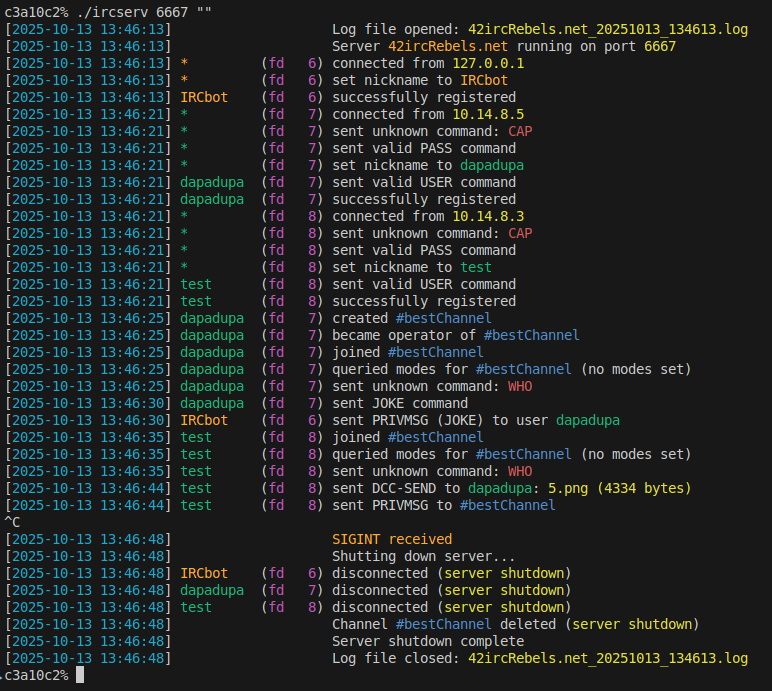
-
User Commands:
NICK: Handles setting or changing a nickname -NICK newnicknameUSER: Handles setting a username (and other info) -USER <username> <hostname> <servername> <realname>→USER guest 0 * :Ronnie Reagan. Hostname and servername are usually ignored/masked in modern IRC but info is used to form the hostmasknickname!username@hostname, which uniquely identifies a client.PASS: Handles the connection password for authentication -PASS mysecretpasswordJOIN: Allows a user join a channel, or create it if it doesn’t exist -JOIN #generalQUIT: Allows a user to disconnect from the server -QUIT :Leaving for lunch(reason is optional)PART: Allows a user to leave a channel -PART #oldchannelPRIVMSG: Used for sending private messages to a user or a channel -PRIVMSG username :Hello there!,PRIVMSG #general :What's everyone up to?NOTICE: Similar toPRIVMSG, but used for server messages and automated responses. It should not be used for client-to-client communication. The main difference is that a user's IRC client should never automatically respond to aNOTICE-NOTICE username :You have a new message.LIST: Lists up all existing channels (shows number of active users, topic if any) -LIST
-
Channel Operator Commands: The server differentiates between operators and regular users. Operators have the authority to use specific commands to manage a channel:
KICK: Ejects a client from a channel -KICK #general baduser :You've been kicked for spamming.(reason is optional)INVITE: Invites a client to a channel. This is particularly useful for invite-only channels -INVITE newuser #generalTOPIC: Changes or views the channel topic -TOPIC #general :Welcome to the main chat!(setting topic),TOPIC #general(checking topic)MODE: Changes a channel's mode using the following flags, using+or-to add/remove these modes.i: Toggles the invite-only channel mode -MODE #private +i(makes channel invite-only),MODE #private -i(removes invite-only restriction)t: Toggles the restriction of theTOPICcommand to channel operators -MODE #general +trestricts theTOPICcommand so only operators can change the topic.k: Toggles the channel key (password) -MODE #locked +k secretkeyo: Gives or takes away channel operator privilege -MODE #general +o newoperatorl: Sets or removes a user limit for the channel -MODE #limited +l 10
-
Bot Commands:
JOKE: Bot tells a joke.CALC: Bot evaluates a mathematical expression:CALC 22 + 47 - 3*23 / 2.
-
Logging and Audit Trail: The server includes a detailed logging mechanism for debugging and operational oversight.
- Event Tracking: The system maintains a structured log of all events, including successful/failed authentications, connection lifecycle, bot activity, every command executed by users and critical server failures.
- Dual Output: Logs are output in real-time to the server console (for immediate monitoring) and saved persistently in dedicated log files (for audit and post-mortem analysis).
User registration on an IRC server is a three-step process: password (PASS), nickname (NICK), and user information (USER). The client sends these commands to the server and the server validates them to register the user and begin the communication session.
Upon successful registration, the server sends back welcome messages with numeric codes 001 through 004 to confirm the connection and provide server details.
:42ircRebels.net 001 nick :Welcome to the 42 IRC Network, nick!user@host
:42ircRebels.net 002 nick :Your host is 42ircRebels.net, running version eval-42.42
:42ircRebels.net 003 nick :This server was created Thu Sep 11 2025 at 07:30:01 UTC
:42ircRebels.net 004 nick 42ircRebels.net eval-42.42 - itkol
In IRC, the server communicates with clients by sending protocol-compliant replies. Each message follows a standard format, as specified in RFC 1459[1].
Every message from the server to the client has this general structure:
:<prefix> <command or numeric> <target> :<message>\r\n
| Field | Description |
|---|---|
:<prefix> |
Always the server name (e.g. irc.example.org) |
<command> or <numeric> |
Either a command name (e.g. NOTICE) or a numeric reply (001, 433, 464, etc.) |
<target> |
Typically the user's nickname, or * if the client is not yet registered |
:<message> |
Human-readable message text (trailing parameter) |
\r\n |
Required line ending in all IRC messages |
The following helper method of the User class ensures the server reply is properly formatted and appended to the user's output buffer, which is eventually sent via send() in handleWriteReadyUsers().
/**
Appends a raw IRC message from the server to the user's output buffer,
which is eventually flushed via `send()`.
Automatically prefixes the message with the server name and appends `\r\n`.

 @param message		The already-formatted reply (e.g. "001 Alex :Welcome...")
*/
void	User::sendServerMsg(const std::string& message)
{
	if (_fd == -1) // User not connected
		return;

	std::string	fullMessage = ":" + _server->getServerName() + " " + message + "\r\n";
	_outputBuffer += fullMessage;
}
This function:
- Prepends the server name as the prefix
- Appends
\r\nto comply with the IRC protocol - Stores the message in the user’s output buffer (later flushed via
send())
Example usage:
user->sendServerMsg("001 nick :Welcome to the IRC Network, nick!user@host");Which sends the following to the client
:42ircRebels.net 001 nick :Welcome to the 42 IRC Network, nick!user@host
The core of the server is the Server class. It's responsible for managing the entire IRC network, including user connections, channels, and command handling. It uses a non-blocking, single-threaded architecture to manage multiple clients efficiently via I/O multiplexing with select().
The project is structured around several key classes:
-
Server: The central class that manages the main server socket, new connections, and the main server loop. It contains maps to store and manageUserandChannelobjects. -
User: Represents an individual client connected to the server. It stores all user-specific data, such as nickname, username, and connection status, and has input/output buffers for network communication. A user can be in multiple channels, and theUserclass tracks this membership. -
Channel: Represents a chat room on the server. It manages its own list of members, operators, invitations, topic, and channel modes (e.g., password, invite-only, user limit). -
Command: A static utility class responsible for parsing and handling all IRC commands. It uses atokenize()method to break down incoming messages and dispatches them to specific handler functions (e.g.,handleJoin,handleKick).
-
Server Lifecycle: The server starts in
main.cppby creating aServerinstance with a given port and password. TheServer::run()method then starts a loop that continuously monitors all client sockets usingselect(). It waits for one of three types of events to handle I/O:- New Connections: A new connection request on the main server socket is handled by
FD_ISSET(_fd, &readFds). - Incoming Data: Incoming data from existing clients is processed by
handleReadyUsers(readFds). - Outgoing Data: Outgoing data is sent to clients with pending messages by
handleWriteReadyUsers(writeFds).
- New Connections: A new connection request on the main server socket is handled by
-
User Registration: A new user must complete a three-step registration process using the
PASS,NICK, andUSERcommands. TheUserclass tracks the status of these commands, and thetryRegister()method attempts to complete the registration once all three commands have been successfully processed. The server also validates the nickname according to IRC rules to prevent invalid or duplicate nicknames. -
Command Processing:
- When a full message is received from a client, the
Command::tokenize()function parses the message into a list of tokens. Command::getCmd()determines the command type.Command::handleCommand()then calls the appropriate static handler function (e.g.,handleJoinfor theJOINcommand).
- When a full message is received from a client, the
-
Channel Management: The
Serverclass manages all channels, while theChannelclass handling details, such as the topic, user limit and channel key. It also makes sure that there are no "zombie" channels without any users. -
Data Flow: The server uses input and output buffers for each
User. Incoming data from a client is accumulated in the input buffer until a complete IRC message (\r\n) is found. Once processed, a response is formatted and appended to the user's output buffer, which is then sent back to the client when their socket is ready for writing. This buffering prevents the server from blocking while waiting to send data.
Non-blocking I/O is a programming technique where a function call for an I/O operation doesn't wait for the operation to complete. Instead, it returns immediately, indicating how much data was processed or if the operation couldn't be completed. This is crucial for building efficient, single-threaded servers that must handle many client connections simultaneously.
The alternative, blocking I/O, would cause the server to freeze while it waits for a single operation to finish. For example, if the recv() function is called on a blocking socket and there is no data to read, the entire program would pause until data arrives. This makes it impossible to handle other clients or perform other tasks.
When you perform a non-blocking I/O operation (like recv() or send()) on a socket that is not yet ready, the system call will return an error code, typically EAGAIN or EWOULDBLOCK. These are not critical failures; instead, they are signals that the operation could not be completed immediately because the resource is temporarily unavailable.
In a server using select(), this happens if you mistakenly try to read from a socket that select() hasn't marked as ready to be read from, or try to write to a socket whose buffer is full. The correct way to handle these errors is to simply ignore them and try again on the next iteration of the main loop. This ensures the server never gets stuck and can continue monitoring other connections.
-
socket():Server::createSocket()usessocket(AF_INET, SOCK_STREAM | SOCK_NONBLOCK, 0)to create the server socket. TheSOCK_STREAMspecifies a TCP socket, andAF_INETsets the address family to IPv4. TheSOCK_NONBLOCKflag is an important part, as it makes the socket non-blocking. On a macOS, thesocket()call creates a standard blocking socket first. Then, thefcntl()function is used with theF_SETFLflag to explicitly set theO_NONBLOCKoption, modifying the socket to be non-blocking -
setsockopt(): InServer::setSocketOptions(), this function is used to set theSO_REUSEADDRoption. This allows the server to restart immediately on the same port without waiting for the operating system to clear the previous socket's state. -
bind():Server::bindSocket()usesbind()to attach the server socket to a specific address and port. It usesINADDR_ANYto bind to all available network interfaces (local machine, local network, public Internet, etc.) andhtons(_port)to ensure the port number is in the correct network byte order. -
listen():Server::startListening()method callslisten()to put the socket into a state where it waits for incoming connections. TheSOMAXCONNconstant is used as the backlog, which tells the operating system how many incoming connections can be queued up while the server is busy. -
select():Server::run()usesselect()as the central mechanism for its event loop. This function is what allows the server to monitor all sockets at once for incoming messages or readiness to send data. TheprepareReadSet()andprepareWriteSet()functions are specifically written to work withselect().select()blocks until one or more monitored sockets become ready for an event (reading from / writing to). Once the function returns, you can iterate through the sets and find the ready sockets and then apply non-blocking I/O operations on them.
poll(),epoll()(Linux) andkqueue()(macOS/BSD) are alternatives toselect(), implementing the same mechanism in a more modern, efficient, and scalable way. -
accept(): InServer::acceptNewUser(), theaccept()call is used to create a new socket for an incoming connection. This new socket is then used to communicate with the specific client. -
send():Server::handleWriteReadyUsers()usessend()to push data from a user's output buffer to their connected socket. -
recv():Server::handleUserInput()usesrecv()to read data from a user's socket and append it to the user's input buffer (stored in theUserobject). The server later reads and parses this buffer into IRC messages.Server::handleUserInput()also checks the number of bytes read to determine if the client is still connected or if a message was received.
DCC (Direct Client-to-Client) is the standard method for transferring files between IRC clients. The IRC server itself does not carry the file; it only passes along the DCC request (IP address and port) to the receiving client via a PRIVMSG. This means the transfer occurs directly between two clients, without a central server mediating the data. Since DCC always uses direct TCP connections, the IP address is crucial — the receiving client must be able to reach the sending client’s address. TCP is like a secure, reliable phone line between two computers — you can send data, and it ensures the other side gets it all in the right order.
By default, HexChat (and many other IRC clients) automatically selects an IP address for DCC transfers. This automatically chosen IP may not be reachable by other hosts, for example:
- A loopback address (
127.0.0.1) - A WAN/external IP that is not accessible from the local network
In these cases, the DCC IP must be set manually. For LAN transfers, you can use the following steps:
- Retrieve your computer’s LAN IP address by running:
hostname -i - Open HexChat and log into your IRC server.
- Navigate to: Settings → Preferences → Network Setup → File Transfers
- In the DCC IP address field, paste your LAN IP address.
- File transfers between hosts on the same LAN should now work.
Note: If you were sending files over the internet, you would need to use your external/WAN IP and set up port forwarding. For local network transfers, the above steps are sufficient.
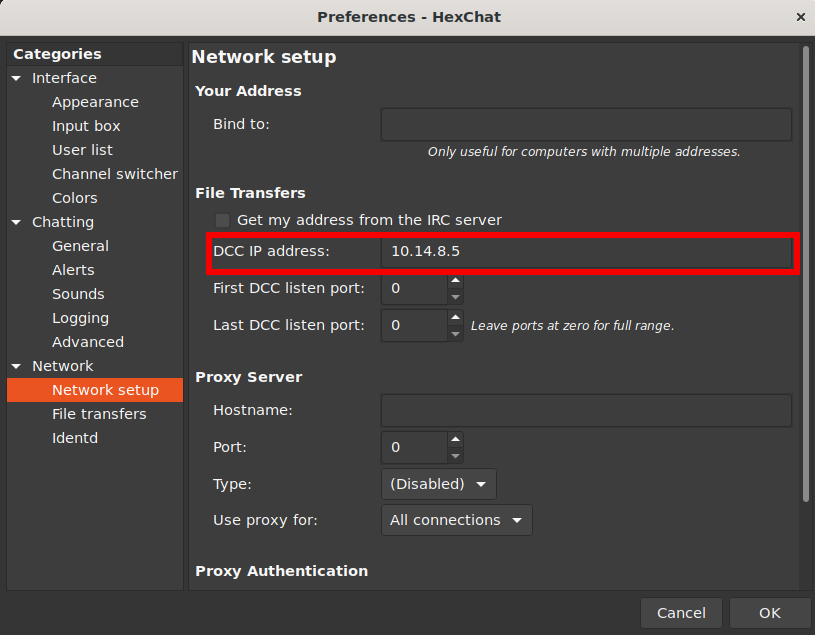
Note: Tools such as nc or telnet won’t trigger a real DCC transfer since they do not implement CTCP (Client-To-Client Protocol used by IRC clients). Only real IRC clients do (e.g. HexChat).
Use the following syntax inside your IRC client:
/dcc send <nickname> <full_path_to_file>The client interprets this command and sends a corresponding PRIVMSG through the server to the recipient:
PRIVMSG <Recipient_Nick> :\x01DCC SEND <filename> <longip> <port> <filesize>\x01-
Locate the recipient: Find the recipient's nickname in the user list (usually on the right side).
-
Select a file: Right-click on the recipient's nickname, choose "Send a File..." and select the file you want to send.
-
Wait for acceptance: An "Uploads & Downloads" window will open with the status "Waiting". The transfer will begin once the recipient accepts.
The server automatically facilitates the DCC handshake, provided that PRIVMSG handling is correctly set up. This server implementation also detects the \x01 delimiters in PRIVMSG messages and validates the DCC SEND command in order to log the file transfer properly.
Compiling the server via make bot registers a bot as a regular client upon startup.
-
Design and Integration: The bot is implemented as a regular
Userobject (with a set_isBotflag). This allows the bot to leverage all existing client-handling logic, simplifying its integration into the main server loop. -
Custom Commands: Two new custom commands,
JOKEandCALC, were implemented and integrated into the server's command dispatcher.- When a user sends these commands (e.g.,
JOKEorCALC 5+5), the bot replies viaPRIVMSG. JOKE: Returns a random joke from a predefined set of ten.CALC: Solves the mathematical expression provided as argument(s); spaces are allowed.
- When a user sends these commands (e.g.,
-
Channel Automation:
- Auto-Join: The bot automatically joins every new channel on the server.
- Operator Status: Upon joining, the bot is immediately granted channel operator status, making it impossible for users to kick or de-op the bot from the channel.
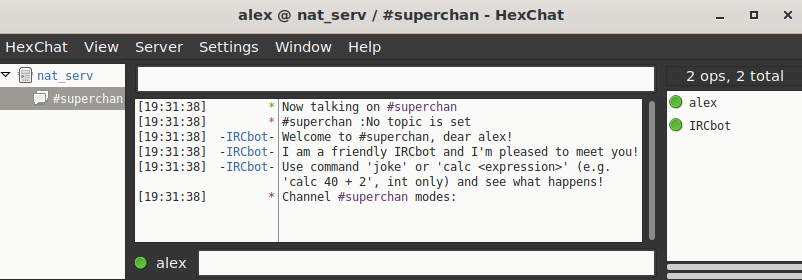
- Welcome Notice: The bot sends a
NOTICEto the channel creator and to every new user joining, welcoming them and providing instructions on how to use the bot's commands. - No Zombie Channels: The presence of the bot does not prevent the channel from being properly closed and deleted once every human user has left.
[1] Oikarinen, J.; Reed, D.(1993). Internet Relay Chat Protocol. Request for Comments: 1459
The project badge is from this repository by Ali Ogun.