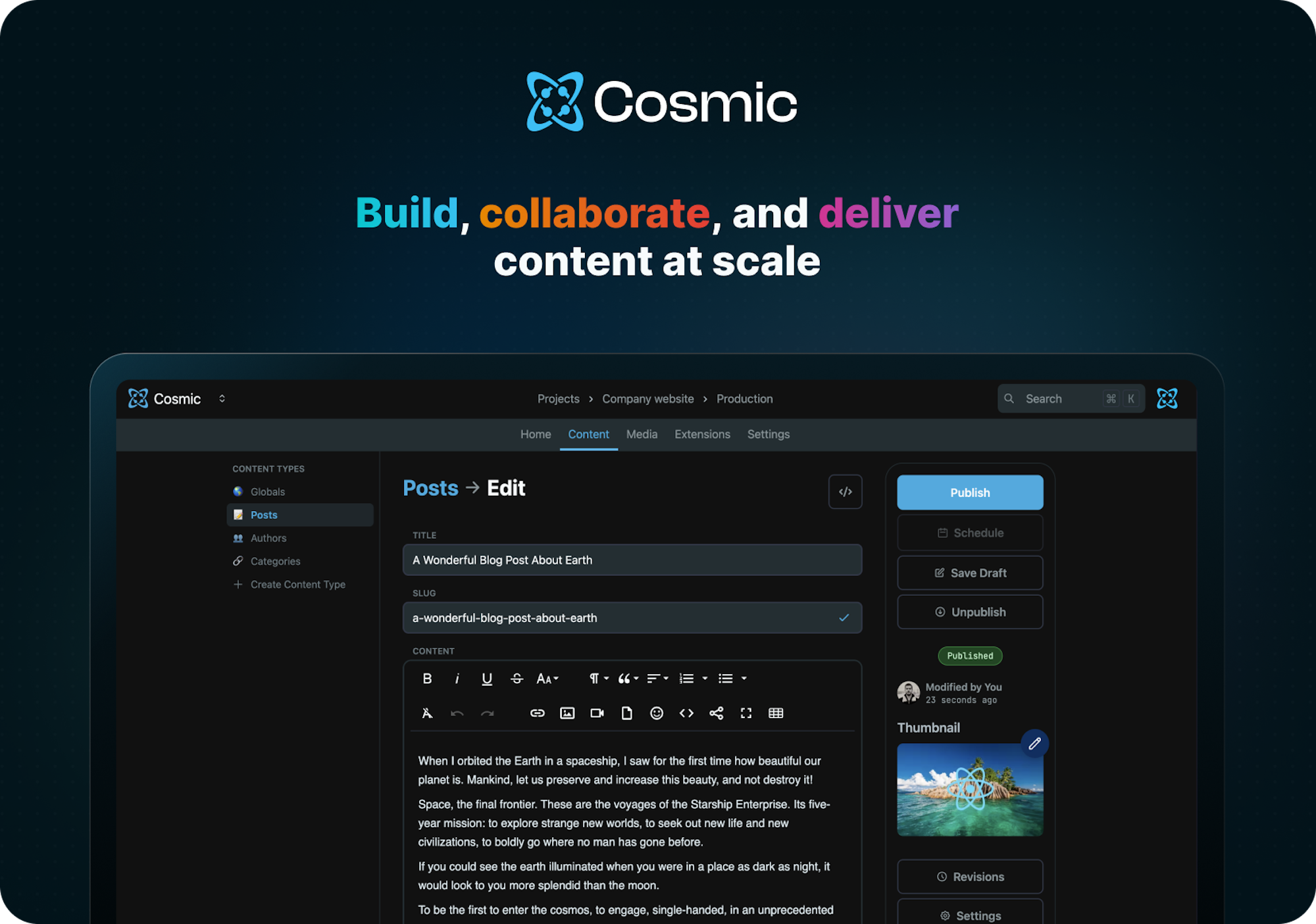
Cosmic is a headless CMS (content management system) that provides a web dashboard to create content and an API toolkit to deliver content to any website or application. Nearly any type of content can be built using the dashboard and delivered using this SDK.
Install the Cosmic JavaScript SDK. We recommend using the bun package manager.
bun add @cosmicjs/sdk
# OR
yarn add @cosmicjs/sdk
# OR
npm install @cosmicjs/sdk
Import Cosmic into your app using the createBucketClient method.
import { createBucketClient } from '@cosmicjs/sdk';In the Cosmic admin dashboard go to Bucket > Settings > API Access and get your Bucket slug and read key then set the variables in your app to connect to your Bucket.
const cosmic = createBucketClient({
  bucketSlug: 'BUCKET_SLUG',
  readKey: 'BUCKET_READ_KEY',
});Objects are the basic building blocks of content in Cosmic.
Get multiple Objects [see docs]
Use the objects.find() method to fetch Objects.
const posts = await cosmic.objects
  .find({
    type: 'posts',
  })
  .props(['title', 'slug', 'metadata'])
  .limit(10);
The above example fetches Objects in the posts Object type returning the title, slug, and metadata properties, limiting the response to 10 Objects.
Get single Object by slug [see docs]
Use the objects.findOne() method with type and slug to fetch a single Object.
const post = await cosmic.objects
  .findOne({
    type: 'pages',
    slug: 'home',
  })
.props(['title', 'slug', 'metadata']);To write to the Cosmic API, you will need to set the Bucket write key found in Bucket > Settings > API Access. (NOTE: never expose your write key in any client-side code)
const cosmic = createBucketClient({
  bucketSlug: 'BUCKET_SLUG',
  readKey: 'BUCKET_READ_KEY',
  writeKey: 'BUCKET_WRITE_KEY',
});
Create Object [see docs]
Use the objects.insertOne() method to create an Object.
await cosmic.objects.insertOne({
  title: 'Blog Post Title',
  type: 'posts',
  metadata: {
    content: 'Here is the blog post content... still learning',
    seo_description: 'This is the blog post SEO description.',
    featured_post: true,
    tags: ['javascript', 'cms'],
  },
});
Update Object [see docs]
Use the objects.updateOne() method to update an Object by specifying the Object id and include properties that you want to update.
await cosmic.objects.updateOne('5ff75368c2dfa81a91695cec', {
  metadata: {
    content: 'This is the updated blog post content... I got it now!',
    featured_post: false,
  },
});
Delete Object [see docs]
Use the objects.deleteOne() method to delete an Object by specifying the Object id.
await cosmic.objects.deleteOne('5ff75368c2dfa81a91695cec');Cosmic provides AI-powered text, image, and video generation capabilities through the SDK.
Generate Text [see docs]
Use the ai.generateText() method to generate text content using AI models. You must provide either a prompt or messages parameter.
const textResponse = await cosmic.ai.generateText({
  prompt: 'Write a product description for a coffee mug',
  max_tokens: 500, // optional
});

console.log(textResponse.text);
console.log(textResponse.usage); // { input_tokens: 10, output_tokens: 150 }const chatResponse = await cosmic.ai.generateText({
messages: [
{ role: 'user', content: 'Tell me about coffee mugs' },
{
role: 'assistant',
content: 'Coffee mugs are vessels designed to hold hot beverages...',
},
{ role: 'user', content: 'What materials are they typically made from?' },
],
max_tokens: 500, // optional
});
console.log(chatResponse.text);
console.log(chatResponse.usage);import { TextStreamingResponse } from '@cosmicjs/sdk';
// Enable streaming with the stream: true parameter
const result = await cosmic.ai.generateText({
prompt: 'Tell me about coffee mugs',
// or use messages array format
max_tokens: 500,
stream: true // Enable streaming
});
// Cast the result to TextStreamingResponse
const stream = result as TextStreamingResponse;
// Option 1: Event-based approach
let fullResponse = '';
stream.on('text', (text) => {
fullResponse += text;
process.stdout.write(text); // Display text as it arrives
});
stream.on('usage', (usage) => console.log('Usage:', usage));
stream.on('end', (data) => console.log('Complete:', fullResponse));
stream.on('error', (error) => console.error('Error:', error));
// Option 2: For-await loop approach
async function processStream() {
let fullResponse = '';
try {
for await (const chunk of stream) {
if (chunk.text) {
fullResponse += chunk.text;
process.stdout.write(chunk.text);
}
}
console.log('\nComplete text:', fullResponse);
} catch (error) {
console.error('Error:', error);
}
}// Simplified streaming method
const stream = await cosmic.ai.stream({
prompt: 'Tell me about coffee mugs',
max_tokens: 500,
});
// Process stream using events or for-await loop as shown aboveThe TextStreamingResponse supports two usage patterns:
-
Event-based: Extends EventEmitter with these events:
text: New text fragmentsusage: Token usage informationend: Final data when stream completeserror: Stream errors
-
AsyncIterator: For for-await loops, with chunk objects containing:
text: Text fragmentsusage: Token usage informationend: Set to true for the final chunkerror: Error information
The AI model can analyze images and files when generating text responses. This feature works with both the prompt and messages approaches.
const textWithImageResponse = await cosmic.ai.generateText({
  prompt: 'Describe this coffee mug and suggest improvements to its design',
  media_url: 'https://imgix.cosmicjs.com/your-image-url.jpg',
  max_tokens: 500,
});

console.log(textWithImageResponse.text);
console.log(textWithImageResponse.usage);
Generate Image [see docs]
Use the ai.generateImage() method to create AI-generated images based on text prompts.
const imageResponse = await cosmic.ai.generateImage({
  prompt: 'A serene mountain landscape at sunset',
  // Optional parameters
  metadata: { tags: ['landscape', 'mountains', 'sunset'] },
  folder: 'ai-generated-images',
  alt_text: 'A beautiful mountain landscape with a colorful sunset',
});

// Access the generated image properties
console.log(imageResponse.media.url); // Direct URL to the generated image
console.log(imageResponse.media.imgix_url); // Imgix-enhanced URL for additional transformations
console.log(imageResponse.media.width); // Image width
console.log(imageResponse.media.height); // Image height
console.log(imageResponse.media.alt_text); // Alt text for the image
console.log(imageResponse.revised_prompt); // Potentially revised prompt used by the AI
Generate Video [see docs]
Use the ai.generateVideo() method to create AI-generated videos using Google's Veo 3.1 models.
const videoResponse = await cosmic.ai.generateVideo({
  prompt: 'Product rotates smoothly revealing all angles with soft studio lighting',
  duration: 8, // 4, 6, or 8 seconds (optional, default: 8)
  resolution: '720p', // '720p' or '1080p' (optional, default: '720p')
  // Optional parameters
  model: 'veo-3.1-fast-generate-preview', // or 'veo-3.1-generate-preview' for premium quality
  reference_images: ['https://cdn.cosmicjs.com/product-hero.jpg'], // Up to 3 reference images
  metadata: { product_id: 'prod_123', campaign: 'launch-2024' },
  folder: 'ai-videos',
});

// Access the generated video properties
console.log(videoResponse.media.url); // Direct CDN URL to the video
console.log(videoResponse.media.imgix_url); // Imgix-enhanced URL
console.log(videoResponse.media.metadata.duration); // Video duration in seconds
console.log(videoResponse.media.metadata.resolution); // Resolution (720p or 1080p)
console.log(videoResponse.usage.total_tokens); // Tokens consumed (144K-768K)
console.log(videoResponse.generation_time_seconds); // Time taken to generate
Video Features:
- Native Audio: Videos include automatically generated audio
- Two Quality Tiers: Fast (30-90s generation) or Standard (60-180s, premium quality)
- Flexible Options: 4, 6, or 8-second videos at 720p or 1080p
- Image-to-Video: Use reference images as the starting frame
- Automatic Storage: Videos are saved to your Media Library with global CDN delivery
Extend Video [see docs]
Use the ai.extendVideo() method to extend a previously generated Veo video, creating longer sequences by continuing from the final frame.
// First, generate an initial video
const video = await cosmic.ai.generateVideo({
  prompt: 'A calico kitten sitting in golden sunlight',
  duration: 8
})

// Extend it with a continuation
const extended = await cosmic.ai.extendVideo({
  media_id: video.media.id,
  prompt: 'The kitten stands up and walks away into the garden'
})

console.log(extended.media.url) // Your extended video!
console.log(extended.source_media_id) // Original video ID
Video extensions are always 8 seconds at 720p. Extended videos can be extended again for unlimited chaining.
See the AI Video Generation Guide for detailed examples and best practices.
Go to the Cosmic docs to learn more capabilities.
For additional help, you can use one of these channels to ask a question:
- Discord (Development questions, bug reports)
- GitHub (Issues, contributions)
- X (formerly Twitter) (Get the latest news about Cosmic features and notifications)
- YouTube (Learn from video tutorials)
- Contact us for help with any service questions and custom plan inquiries.
This project uses changeset to manage releases. Follow the following steps to add a changeset:
- Run
npm run changesetcommand and select type of release with description of changes. - When PR with changeset is merged into
mainbranch, Github will create a new PR with correct version change and changelog edits. - When
codeownermerges the generated PR, it will publish the package and create a Github release.
This project is published under the MIT license.