Script can be used to give a single button on the Raspberry Pi multiple functions (with PWR led1 and ACT led0 feedback) depending on how many presses, for example 2 presses to pause a docker service, 4 presses to stop a docker service, and 6 to power off. Its setup for a Raspberry Pi 3 Raspbian or Dietpi (use dietpi_button.sh), but can be used for other Pi models as well, just doublecheck which gpio pins to use. Depending on your button, one button presses may sometimes register as 2 or 3 presses, if this happens just press a few more times and wait, the script will clear out button presses count when more than 6 is counted. LED0 and LED1 are set to give feedback on which function (2,4 or 6) was chosen.
Some items, images/text are from Howchoo Raspberry Pi power button guide.
- Connect to your Raspberry Pi via SSH
- Clone this repo:
git clone https://github.com/davidchilin/raspberry-pi-single-button-multi-function - Raspbian follow all instructions as normal. (If using Dietpi use dietpi_button.sh as led names are different, install gpiod, also it uses way less resources than multifunction_button.py version). Edit lines 25, 30, 35 to perform the functions you want, default is set to pause a docker service with 2 presses, 4 will stop the docker service, and 6 will power off the Pi. Optional: Edit line 9 in multifunction_button.py to your preferred pin (currently set to pin 5/gpio 3 which has power ON functionality)
- Either:
- Create a new systemd service
- with a new "multifunction_buton.service" file in /etc/systemd/system with contents:
[Unit] Description=Multifunction Button Thread [Service] Type=simple ExecStart=/file/path_to/multifunction_button.py Restart=always [Install] WantedBy=multi-user.target - add execute permission with command:
sudo chmod +x /file/path_to/multifunction_button.py - enable and start the service:
sudo systemctl enable multifunction_buttonthensudo systemctl start multifunction_button
- with a new "multifunction_buton.service" file in /etc/systemd/system with contents:
- OR Run the setup script, to install and use init.d:
./raspberry-pi-single-button-multi-function/script/install
- Create a new systemd service
Uninstall the way you installed, either:
- stop the service 'sudo systemctl disable multifunction_button' and delete relevant files
- run uninstall script:
./raspberry-pi-single-button-multi-function/script/uninstall
A full list of what you'll need can be found here. At a minimum, you'll need a normally-open (NO) power button, and some jumper wires.
Connect the power button to Pin 5 (GPIO 3/SCL) and Pin 6 (GND) as shown in the diagram:
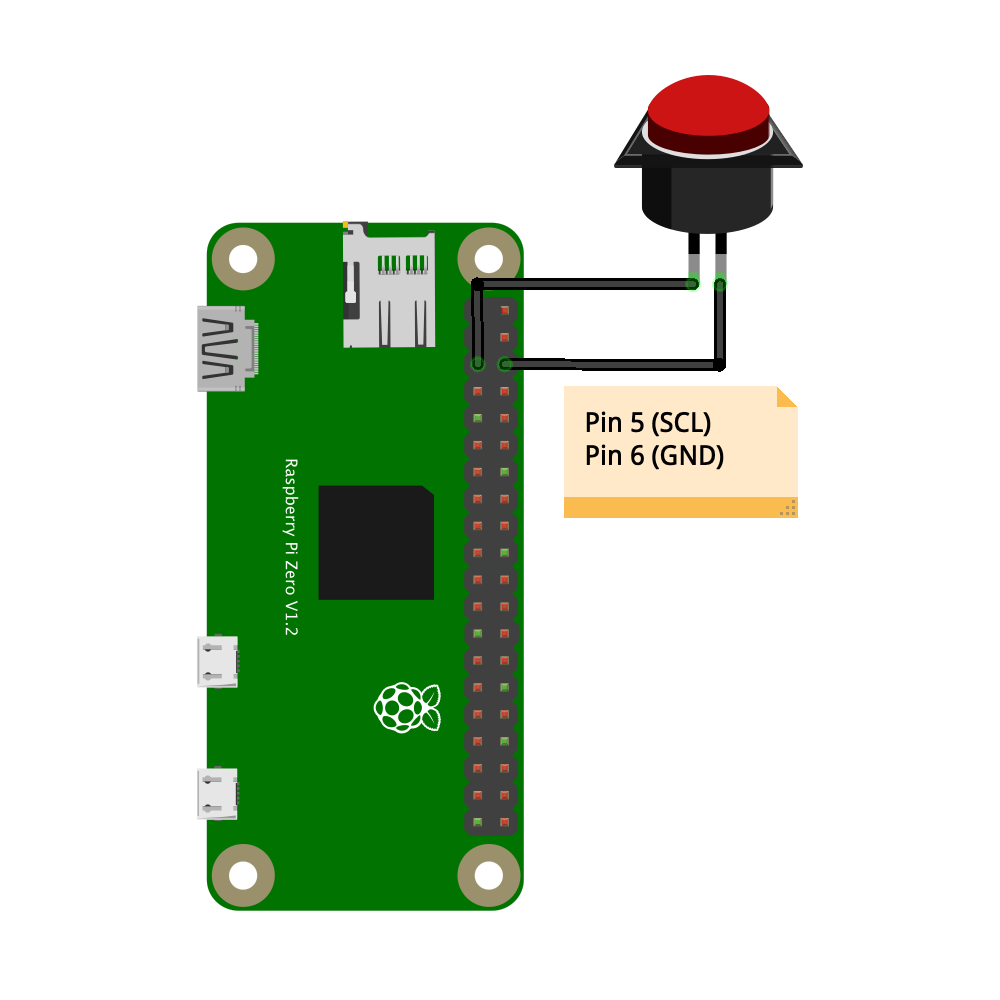
Yes, if you do not need power on functionality for the Pi, you can use gpio 21/pin 40 or gpio 7/pin 26.
There are three main features of the button using Pin 5/GPIO 3:
- Wake functionality: Turn the Pi back on when the button is pressed again - only with Pin 5/GPIO3.
- Shutdown functionality: Shut the Pi down safely when the button is pressed 6 times. The Pi now consumes zero power.
The wake functionality requires the SCL pin, Pin 5 (GPIO 3). There's simply no other pin that can "hardware" wake the Pi from a zero-power state. If you don't care about turning the Pi back on using the power button, you could use a different GPIO pin for the shutdown functionality and still have a working multifunction_button button. Then, to turn the Pi back on, you'll just need to disconnect and reconnect power (or use a cord with a physical switch in it) to "wake" the Pi.
Of course, for the GND connection, you can use any other ground pin you want.