Home
Siebel Script And Web Template Editor is a Visual Studio Code extension, which enables editing Siebel object server scripts and web templates directly in VS Code, using the Siebel REST API.
The Siebel Script And Web Template Editor can be installed from the Visual Studio Code Extensions Marketplace.
Alternatively, it can be installed with the siebelscriptandwebtempeditor-<VERSION_NUMBER>.vsix extension file, which is found in the repository. To install the extension from the .vsix file, run the following command:
code --install-extension <DOWNLOAD_PATH>\siebelscriptandwebtempeditor-<VERSION_NUMBER>.vsix
The command shall respond with:
Extension 'siebelscriptandwebtempeditor-<VERSION_NUMBER>.vsix' was successfully installed.
Some other/warning messages may be displayed, but that's OK as long as the installation is successful.
A new icon appears in the left sidebar to access the extension's UI:
To open the extension, click on its icon in the left sidebar. If no workspace folder is open in the Visual Studio Code, the extension prompts to open one. To use the extension, at least one Siebel Connection must be configured. Click on the New Connection button in the Connection panel, and a dedicated GUI opens:
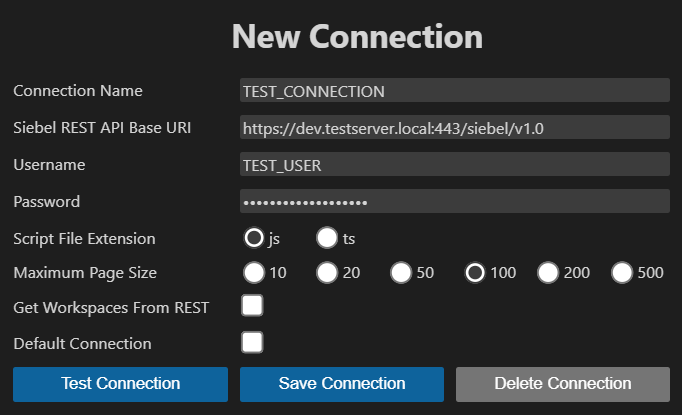
Where:
- Connection Name: a unique name to identify the connection. It is the name displayed in the extension's UI when selecting the connection. Use something that identifies the connection for you easily, such as SANDBOX, USER1_DEV, USER2_DEV, etc. This cannot be changed later.
-
Siebel REST API Base URI: defines access to the Siebel REST API in the following format:
https://Server Name:Port/siebel/v1.0, where:-
Server Nameis the URL of the Siebel server. -
Portis the HTTP port where the Siebel listens for connections. - e.g. if the Siebel Server URL is
https://dev.testserver.local, and the port is443, then it shall behttps://dev.testserver.local:443/siebel/v1.0.
-
- Username: the Siebel username for basic authentication.
-
Password: the password for
Username.
Use the Test Connection button to test if the connection is working, an information message is shown if it is ok, or an error message if something is amiss. Then save with the Save Connection button.
-
Script File Extension: the file extension for the downloaded server scripts, .js (default) or .ts. If you use explicit types in your eScript scripts, .ts is recommended, else errors are shown for using types in a .js file.
-
Maximum Page Size: number of records to fetch from the Siebel REST API. Cannot be greater than the value of the MaximumPageSize parameter of the component EAI Object Manager (default is 100, in Siebel and in the extension as well), otherwise Siebel will respond with an error.
-
Get Workspaces From The Siebel REST API: if this checkbox is set to true, the workspaces for the connection are fetched from the Siebel REST API, without manually adding workspaces with the New Workspace button on the Datasource panel. Only workspaces belonging to the given username and having status either Created, Checkpointed or Edit-In-Progress are available. The extension tests if the connection is eligible, and unchecks the setting if not. There are two possiblities to use this option:
Recommended (fast and compatible with all Siebel versions):
- Download the Base Workspace integration object from the GitHub repository: BaseWorkspaceIOB.sif, which enables to get information about workspaces (name, status and who created it) through REST.
- Import the integration object into a workspace in Siebel.
- Merge it into the workspace used by the EAI Object Manager (typically MAIN).
Alternative (available from Siebel IP 23.5, but slower):
- From IP 23.5 onward, you can use dynamic integration objects (no need to import the Base Workspace integration object), but this method may take a few seconds to retrieve workspace data
- Set the EnableDynamicIOInREST parameter of the EAI Object Manager to true.
change param EnableDynamicIOInREST=true for comp EAIObjmgr_enu - In the Inbound REST API Access view, add a new record:
- Name: Workspace
- Integration Object: leave it empty (the Base Workspace integration object can be added later for better performance)
- Grant Access: Y
-
Default Connection: sets the connection to which the extension defaults.
You can edit any connection by selecting it from the Connection dropdown, then clicking on the Edit Connection button. Multiple connections can be provided, which is useful if you have access to different users/environments/clients/etc. After changing any setting from the GUI, the Save Connection button has to be pressed to save the changes. The Delete Connection button removes the connection after confirmation.
If there is no valid certificate installed for a Siebel connection, the REST API calls result in the following error: Error using the Siebel REST API: self signed certificate in certificate chain. The recommended solution is to get and install a valid certificate for the given Siebel endpoint, other possibility is to set the NODE_TLS_REJECT_UNAUTHORIZED environment variable to 0, WARNING: THIS IS HIGHLY DISCOURAGED FOR SECURITY REASONS.
The UI consists of two different panels, the uppermost is used for selecting the connection and workspace from where the data is shown/fetched, the type of the Siebel object to search for and a search bar:
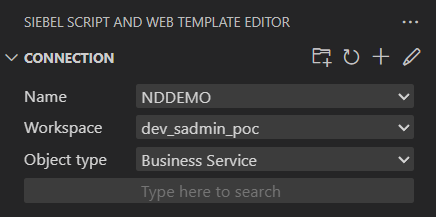
This panel has four buttons in its title bar:
- New Workspace: prompts for a workspace name and creates a new workspace for the selected connection in the extension. The workspace name is validated to ensure it exists in Siebel. The MAIN workspace is available for all connections by default.
- Refresh: synchronizes the workspaces with Siebel when the Get Workspaces From The Siebel REST API setting is enabled, which is useful when new workspaces have been created, their status have changed or a connection error has occured.
- New Connection: opens the New Connection GUI to create a new connection.
- Edit Connection: opens the Edit Connection GUI to edit the selected connection, if there are no connections, it opens the New Connection GUI as well.
The other panel displays a tree view of the root Siebel objects that contain server scripts or web templates: Business Service, Business Component, Applet, Application and Web Template. To retrieve Siebel server scripts or web templates, select a connection, a workspace, and an object type. Then, start typing the name of the desired object in the search field. Wildcard character * can be used and is automatically appended to the end of the search string. Matching results are displayed under the corresponding root object:
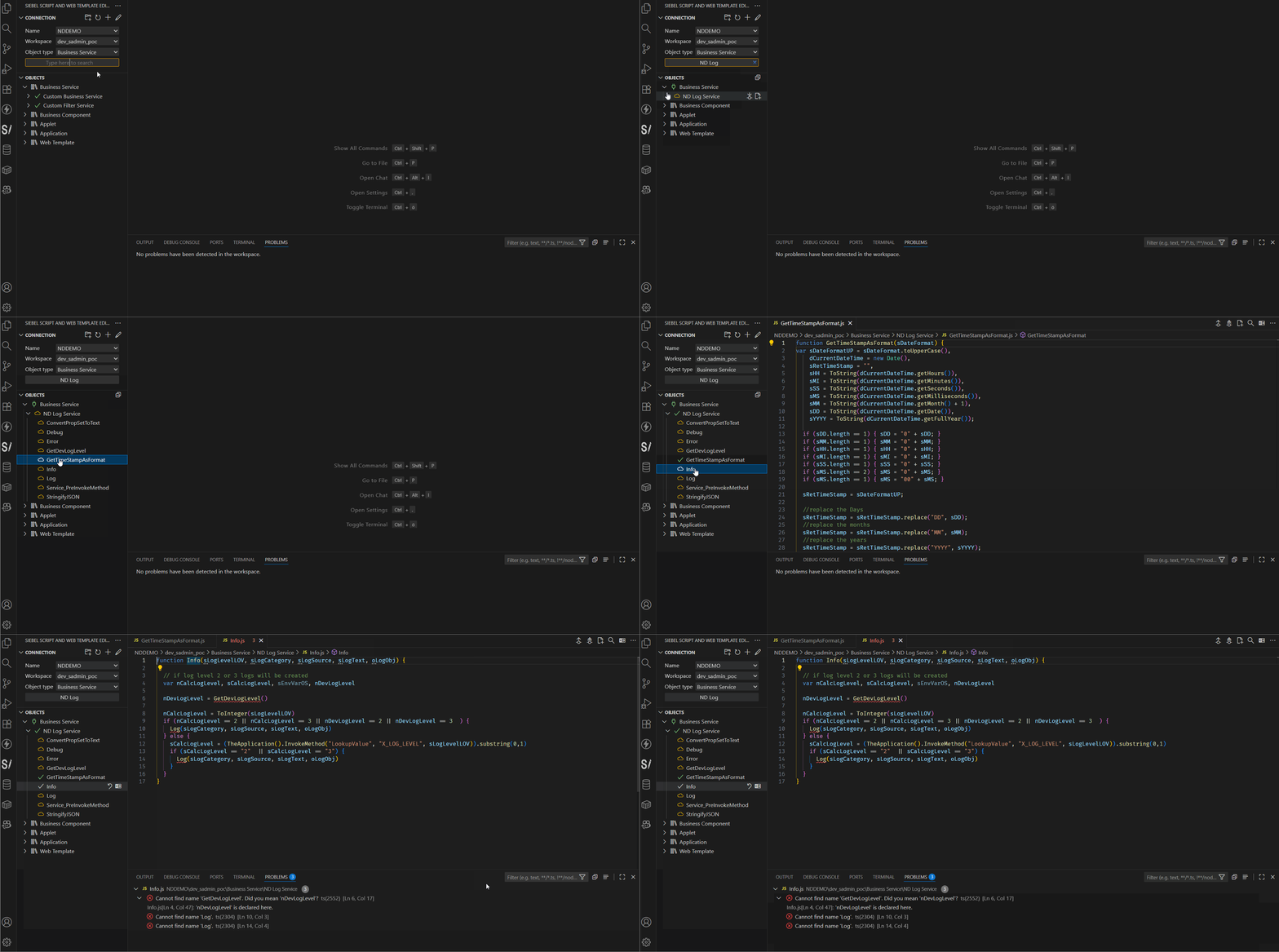
Description of the tree item icons and buttons:
Root objects
Shows the objects present on disk (by default) or the results of a search when expanded.
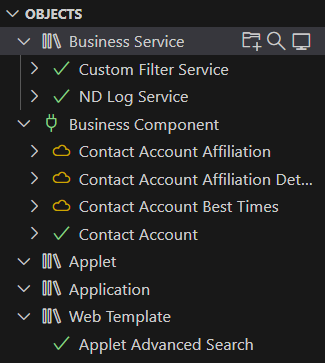
Icons:
- White books: the downloaded items are shown.
- Green plug: the online data showing the result of a search is shown.
Buttons:
-
New Business Service: shown only in editable workspaces, creates a new business service, the extension prompts to search for a project name in Siebel, then after choosing one, the business service name can be entered, which is then created with a
Service_PreInvokeMethodscript. Other objects have to be created in Siebel (Web)Tools. - Search In The Downloaded Files: opens the Visual Studio Code search view, and sets the search folder to the given Siebel root object.
- Show Files On Disk: shows and refreshes the items on disk.
Objects with scripts
Shows the child items and compares them with Siebel for the given object when expanded.
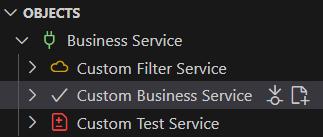
Icons:
- Green checkmark: all child items are synchronized with Siebel (or the object has not been expanded).
- Red plus/minus: there is at least one child item which differs from or has not been pushed to Siebel.
- Yellow cloud: no child item has been downloaded.
Buttons:
- Pull All: downloads all server scripts for the object which are not present on disk.
- New Script: shown only in editable workspaces, creates a new script, either a custom or one of the predefined scripts for the given object.
Scripts and web templates
Clicking on an item will open it, if the item is not present on disk, then it is pulled from Siebel first.
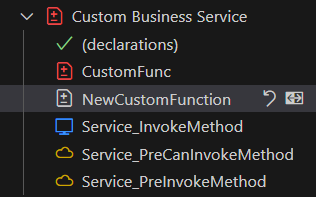
Icons:
- Green checkmark: the item is synchronized with Siebel.
- Red plus/minus: the item differs from Siebel or was changed.
- Blue computer: the item only exists on disk, not in Siebel.
- Yellow cloud: the item is not yet downloaded.
Buttons:
- Revert: after confirmation, the script/web template is pulled from Siebel and overwritten on the disk.
- Compare: compares the script/web template with the one stored in Siebel in the same workspace, changes can be reverted line-by-line.
The following action buttons are shown in top right corner of the VS Code editor when eligible files are open:

-
Push to Siebel: visible only for scripts in editable workspaces, after confirmation, pushes the currently active file to Siebel to update it. If the file name differs from the contained function name, an error message is shown by the extension, only
(declarations)is exempt from this check. Pushing is only allowed into development workspaces created by the username specified in the connection; it is not permitted into the MAIN or integration workspaces (Siebel would throw an error). -
Push all scripts of the current parent object to Siebel: visible only for scripts in editable workspaces, after confirmation, pushes all scripts of the current parent object to Siebel. If any file name (except
(declarations)) does not match the name of the function it contains, an error is displayed and no script is pushed. - New Script: creates a new script for the current parent object, same as the New Script button on the tree view.
- Search in the downloaded scripts of the parent object: visible only for scripts, searches the downloaded scripts of the current parent object for the selected text or word in the Search view.
- Compare: compares the downloaded object with its versions in other Siebel workspaces. It shows a workspace selection at the top of the screen, either all Siebel workspaces if Get Workspaces From The Siebel REST API is enabled, or only the ones present in the connection. After choosing a workspace to compare the current file against, a difference editor is opened, with the object from the choosen Siebel workspace on the left side, and the current file on the right, changes can be reverted in the downloaded one line-by-line.
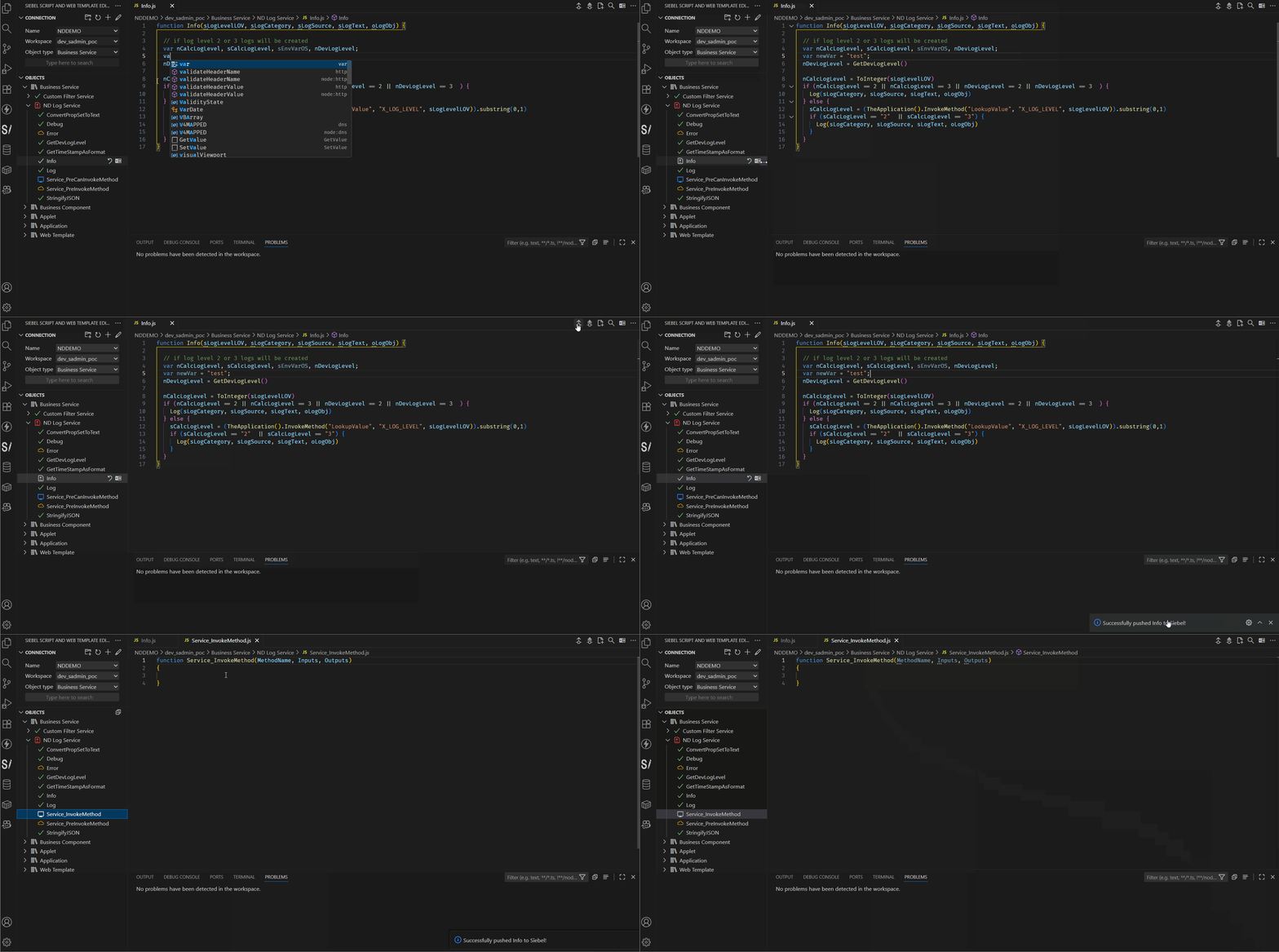
Files index.d.ts and jsconfig.json are created in the Siebel VS Code workspace folder if not present already. The index.d.ts contains type definitions and documentation for Siebel specific constants, objects and interfaces, so the Visual Studio Code has greatly improved autocompletion and semantic checking features. Errors are raised if problems are detected, e.g. using non-existing methods on a given Siebel object.
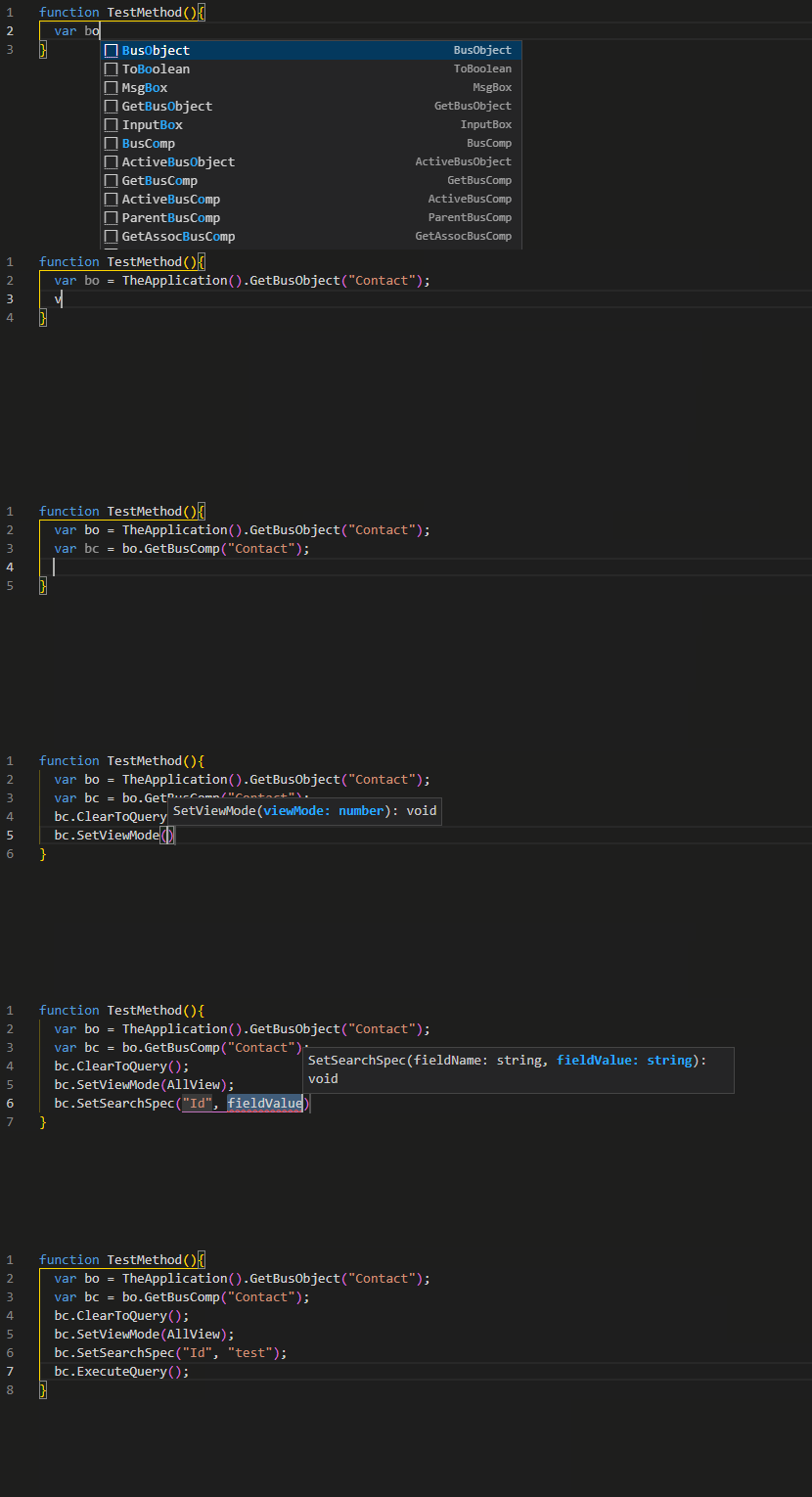
For the best experience, ensure the JavaScript > Suggest: Complete Function Calls is set to true in the Visual Studio Code settings.
Use JSDoc to get type inference for function parameters:
/**
 * @param {BusComp} bcBusComp
 * @param {PropertySet} psIn
 * @param {string} sField
*/
function GetData(bcBusComp, psIn, sField) {
  var sSearch = psIn.GetProperty("SearchSpec");
  bcBusComp.ClearToQuery();
  bcBusComp.SetSearchSpec(sField, sSearch);
  bcBusComp.ExecuteQuery(ForwardOnly);
}