Command line utilities for Azure Kinect DK for generating colored point clouds. Additionally the headers can be used as a wrapper for the Azure Kinect KD to perform the same functionality as the command line.
Example command line usage:
# store a point cloud from each connected device
# using depth mode NFOV_2X2BINNED and color resolution 1280x720
KinectCloud.exe -s -da -dma NFOV_2x2BINNED -dra 720P
# store a point cloud from each connected device
# serial # 000128192012 set to subordinate mode
# serial # 000123492512 set to master mode
# any other connected devices in standalone mode
KinectCloud.exe -s -da -dt 000128192012 s -dt 000123492512 m# store a point cloud for the first device with exposure time 31250 us, color balance 4800K
KinectCloud.exe -s -ce 31250 -cw 4800# host a server from which point clouds can be received
# more options will be added in the future
KinectCloud.exe -h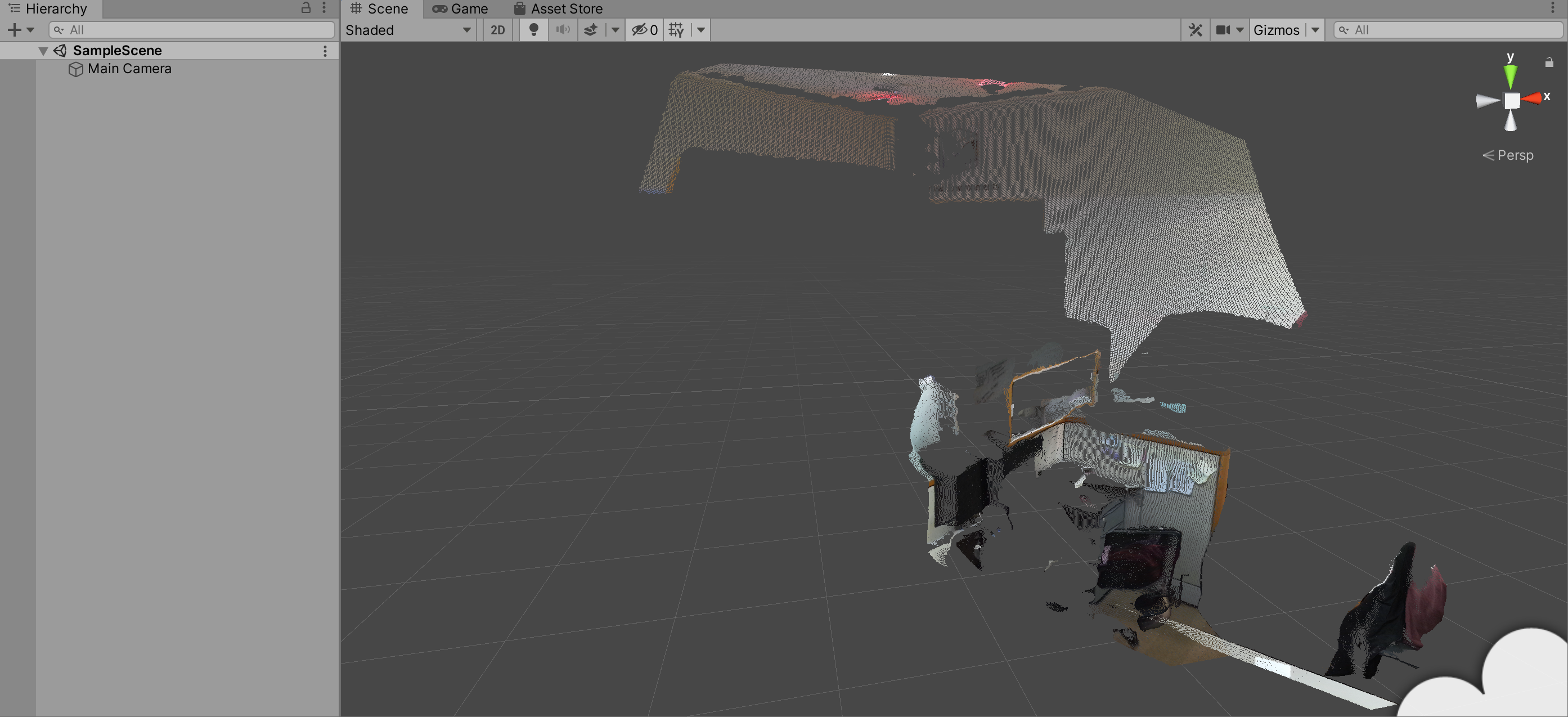
# print out help
KinectCloud.exe
options:
-r | record to a file (must also specify device options)
-e | extract all colored frames into pts files
-ei wait | minimum time between extracted frame (seconds)
-f n | extract single frame n only (may do nothing)
-fa n | extract every n frames starting at 0 from video (1 = every frame)
-s | capture a colored pointcloud for devices (by default first device only)
-i file | specify input file (if applicable)
-o path | specify output locations (default %s_%f.pts)
| %s -> serial number, %f -> frame number
-w int | wait a number of milliseconds after device startup (if applicable)
-c int | store n consecutive frames (if applicable)
-ds ser | device operations apply device with given serial number
-da | device operations apply to all devices
-dn | if no other devices are specified, do not perform any device operations
-dt ser {a,m,s} | declare device topology, stAndalone, Master or Subordinate
-dr ser {res} | declare resolution to use for specific device
-dra {res} | declare resolution to use for all devices
color resolutions: { 720P, 1080P, 1440P, 1536P, 2160P, 3072P }, default is 720P
-dm ser {mode} | declare depth mode to use for specific device
-dma {mode} | declare depth mode to use for all devices
depth modes : { NFOV_2X2BINNED, NFOV_UNBINNED, WFOV_2X2BINNED, WFOV_UNBINNED }, default is NFOV_2X2BINNED
-ce int | color camera exposure time in nanoseconds for all devices
-cw int | color camera white balance in kelvin for all devices (must be % by 10)
-h | (experimental) host server which serves point clouds, port 5687
-v | verbose output
The main functionality of KinectCloud is to use a connected Azure Kinect to capture point clouds. Multiple Azure Kinects can be connected to a single computer, and KinectCloud can interact with any number of devices. The following command will capture a point cloud from each connected device. Files are stored in the .pts text format, separated by spaces; the first 3 values are the point position in millimeters, the final 3 are colors in [0, 255]:
# store a point cloud from first device
KinectCloud.exe -s
Multiple consecutive captures can be performed with the -s flag and the -c flag, frames will be captured as fast as possible:
# store 50 point clouds from first device
KinectCloud.exe -s -c 50Generating and saving point clouds is an intensive process, and is much slower than the time needed to save the raw data from a Kinect; for example its completely infeasible to generate 30 large point cloud files per second, which is the max framerate the Kinect can run at.
So it is necessary to first capture a video from the Kinect (with embedded depth information) and then later convert each from of that video to point clouds. This can be done with the -e flag:
# extract all frames as point clouds from video.mkv
KinectCloud.exe -e -i video.mkv
Each frame of the video will be extracted into a point cloud file, in the same format as from -s. If less than every frame is desired, the following options can be used in tandem with the -e flag:
 -ei wait        | minimum time between extracted frame (seconds)
 -f n            | extract single frame n only (may do nothing)
 -fa n           | extract every n frames starting at 0 from video (1 = every frame)
For example:
# exctract a frame from video.mkv every 0.25 seconds
KinectCloud.exe -e -ei 0.25 -i video.mkv
Important: Not every frames of video is guaranteed to have data. Azure Kinect can produce depth and color frames at different rates, leading to some color frames having no point cloud. KinectCloud can be used to produce synchronized video that has no missing data, with the -r flag:
KinectCloud.exe -rA file is produced for each device, whose serial number can be used in the output file. %s will be replaced with the device serial number. When multiple frames are being extracted, for example with the -c or -e flags, %f will be replaced with the frame number.
 -o path         | specify output locations (default %s_%f.pts)
| %s -> serial number, %f -> frame numberBy default, device index 0 is used for the -s and -e flags, but its better specify either all devices, or specific device serial numbers, which will be used for device operations.
 -ds ser         | device operations apply device with given serial number
 -da             | device operations apply to all devices
-dn | if no other devices are specified, do not perform any device operationsMultiple devices can be coordinated via coaxial cable, to specify the cable topology these flags are available:
 -dt ser {a,m,s} | declare device topology, stAndalone, Master or Subordinate
-dr ser {res} | declare resolution to use for specific deviceThere are various resolution modes available, which can be specified on a per-device basis:
 -dr ser {res}   | declare resolution to use for specific device
 -dra {res}      | declare resolution to use for all devices
   color resolutions: { 720P, 1080P, 1440P, 1536P, 2160P, 3072P }, default is 720P
 -dm ser {mode}  | declare depth mode to use for specific device
 -dma {mode}     | declare depth mode to use for all devices
depth modes : { NFOV_2X2BINNED, NFOV_UNBINNED, WFOV_2X2BINNED, WFOV_UNBINNED }, default is NFOV_2X2BINNEDKinectCloud can be invoked with -h to host a server on port 5687. This can be used for streaming point clouds over the network or just transferring point clouds in real time between programs on a single machine. When invoked, the program will not return until a CTRL+C signal is sent or some error occurs.
The server starts device index 0, and begins capturing frames in a simple binary point cloud format; the most recent 10 frames are cached in memory. The list of frames indices (separated by \n) can be retrieved from the endpoint /frames. The contents of the frames can be retrieved from the endpoint /frame/{n}, or if you just want the most recent frame, from /frame/latest.
The payload from the server is just a blob, and is application/octet-stream mime type. The first 8 bytes returned should be interpreted as a uint64 type representing the total number of points in the blob. Each point is 9 bytes long, in the format [int16, x pos][int16, y pos][int16, z pos][uint8, b color][uint8, g color][uint8, r color], so the total file size should be 8 + numPoints * 9. In the Unity PointStream project an example of interpreting this data from C# is given.